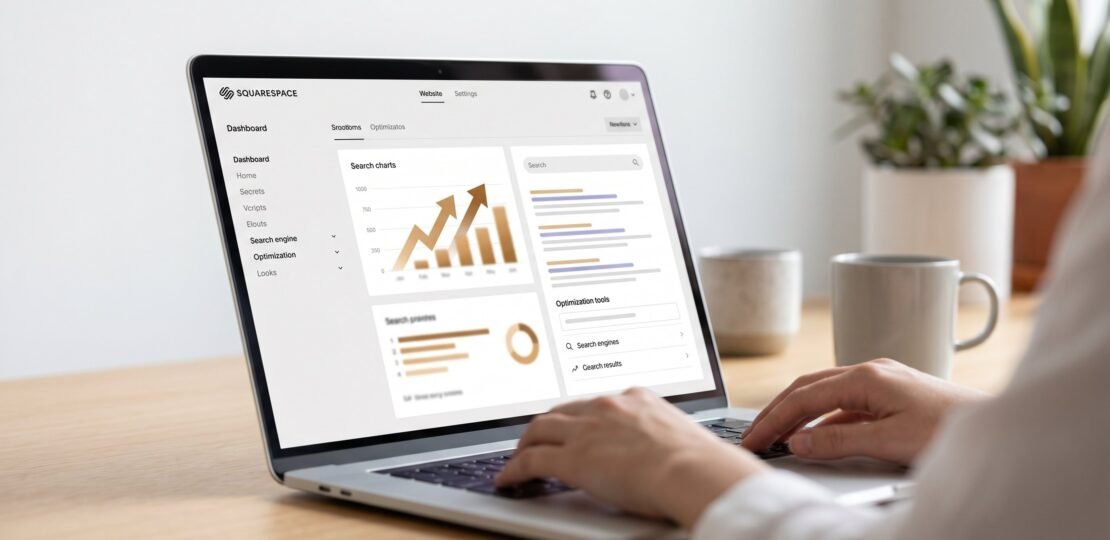
Squarespace gets a bad rap in SEO circles. Walk into any marketing forum and you will hear the same refrain: “Migrate to WordPress if you want to rank.” That advice is lazy, outdated, and frequently wrong. The truth sits somewhere in the middle, and that middle ground is exactly where this guide lives.
If you built your site on Squarespace, you have a platform that handles a surprising amount of technical SEO automatically. You also have real constraints that no amount of clever content strategy will fix. The trick is knowing which battles to fight and which to ignore. Over the next few thousand words, we will walk through every Squarespace SEO setting that matters, every workaround for the platform’s limitations, and a clear decision framework for the rare cases when migration genuinely makes sense.
Is Squarespace good for SEO? Yes, Squarespace is genuinely good for SEO for small business sites, portfolios, and content under roughly 200 pages. It auto-generates sitemaps, enforces clean URLs, serves SSL by default, and renders pages server-side so crawlers see real content. The limits show up when you need custom schema types, granular redirect mapping at scale, or fine-grained server controls. For most users, those constraints never bite.

What Squarespace Gets Right (and Wrong) for SEO
Before we get into settings and code, let us level-set on what the platform actually does for you out of the box. This matters because half the bad advice on the internet stems from people not understanding the baseline.
What Squarespace handles automatically
Squarespace ships with several things that WordPress users routinely pay plugins to add. Your sitemap.xml is generated automatically and lives at yoursite.com/sitemap.xml. SSL is on by default with no certificate management. URLs are clean by default, no /?p=123 nonsense, no date-based slugs unless you opt in. Every template is mobile-responsive, which Google’s mobile-first index requires. The platform serves pages server-side, so Googlebot and most AI crawlers see the actual HTML rather than waiting on JavaScript to execute. Image optimization runs automatically, with multiple sizes generated and served via Squarespace’s CDN.
None of that is glamorous, but it removes a class of mistakes that beginners make on more flexible platforms. You cannot accidentally publish a site without HTTPS. You cannot forget to install a sitemap plugin. You cannot ship a template that breaks on mobile.
What Squarespace does not let you control
The constraints are real and worth naming. You cannot edit server config or .htaccess files. You cannot set custom cache headers. You cannot run server-side code, so no edge functions, no custom middleware, no header manipulation beyond what the dashboard allows. You cannot install plugins that hook into the rendering pipeline the way WordPress plugins do. Custom schema markup requires manual JSON-LD injection rather than checkbox configuration. Redirect mapping works fine for small sites but becomes tedious past a few hundred URLs.
If any of those constraints is a dealbreaker for your specific situation, you have a real reason to consider migration. We will get to that decision framework later. For now, just know that the platform’s tradeoffs are honest ones.
Squarespace 7.0 vs 7.1: which version you are on matters
This is the single most overlooked detail in nearly every Squarespace SEO guide, and it shapes which advice applies to your site. Squarespace runs two coexisting versions, and they behave differently.
Squarespace 7.0 uses a page-and-folder navigation system where each template has its own structural rules. Different 7.0 templates handle blog post URLs, collection pages, and index pages in subtly different ways. If you are on 7.0, your template family (Brine, Bedford, York, etc.) determines what you can change. Some 7.0 templates handle blog category pages cleanly, others generate duplicate content patterns that need manual noindex work.
Squarespace 7.1 uses one unified template system. Every 7.1 site shares the same underlying structure, with style variations rather than fundamental layout differences. That makes SEO advice more portable. Native lazy loading is built into 7.1 images by default. The page editor is consistent. Blog collection settings work the same way across every site.
For SEO purposes, 7.1 is the better starting point in 2026. It receives more updates, supports newer image formats, and ships with lazy loading enabled. If you are on 7.0 and your business is growing, plan a migration to 7.1 at the same time you do any major redesign. Squarespace does not auto-upgrade 7.0 sites, so you have to make the move deliberately.
To check which version you are on, log into your dashboard and open Help. Your version appears in the site information. If you are not sure and the dashboard does not say, check whether you have a “Site Styles” menu with global typography and color settings unified across pages. That is 7.1. If your template has its own template-specific style options, you are on 7.0.
Squarespace SEO Settings: The Foundations
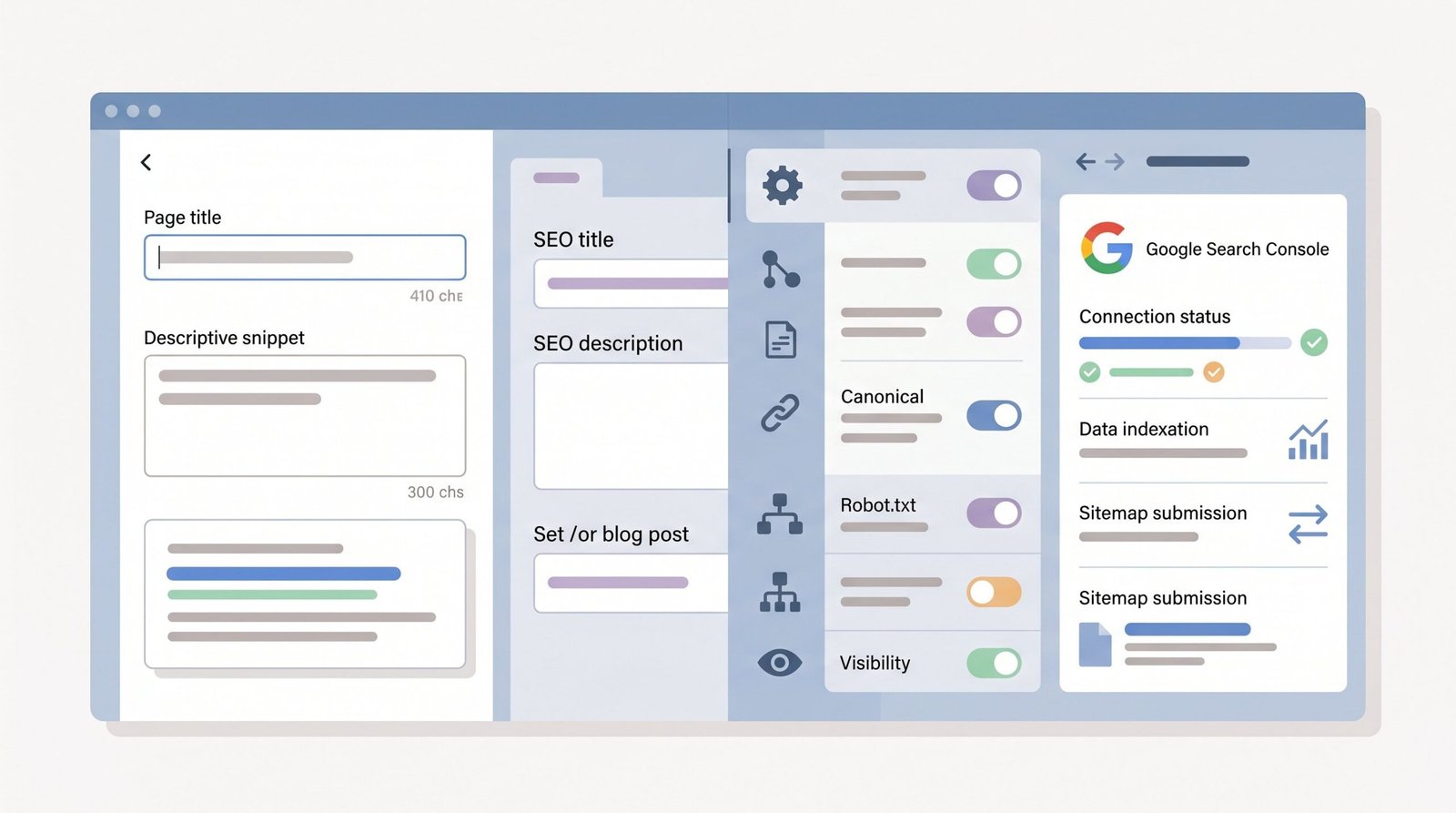
The foundational settings live in two places: site-wide SEO under Marketing > SEO, and per-page SEO inside each page’s settings. Get the site-wide settings right first, then handle individual pages as you build them.
Site title and description
Open Marketing > SEO > SEO Appearance. You will see Site Title and Site Description fields, plus separate fields for collection pages and item pages. The site title appears as the fallback browser tab title and the default suffix for individual pages. Keep it under 60 characters. Write it as “Brand Name | Primary Service” or “Brand Name | Location” if you are local.
The site description is the default meta description for pages that do not have a custom one. Write it as a clear 150 to 160 character summary of what the business or site does. This is not the place for keyword stuffing. Google rewrites meta descriptions roughly 70% of the time anyway, so the goal is to write something accurate and clickable, not to load it with phrases.
Squarespace also lets you set formats for how page titles compose. Default is usually “Page Title – Site Title”. That works for most sites. If your brand name is long, consider switching the order.
Connecting Google Search Console
This is non-negotiable. Without Search Console, you are flying blind on what queries bring traffic to your site. Open Marketing > SEO > Google Search Console in the dashboard. Squarespace will give you a one-click connection flow through your Google account.
If the one-click flow fails, fall back to the manual verification method. Go to search.google.com/search-console, add your domain property, and copy the HTML tag verification meta tag. Paste it into Settings > Advanced > Code Injection > Header. Save and verify. Google’s own SEO starter guide walks through verification options if you want the canonical reference.
Submitting your sitemap
Squarespace auto-generates your sitemap at yoursite.com/sitemap.xml. You do not need to create or maintain it. You do need to submit it to Search Console so Google knows where to find it. In Search Console, open Sitemaps and submit the path “sitemap.xml” (no leading slash). Google will pick it up within a few days.
Check the sitemap file directly in your browser before submitting. If you see pages that should not be public, like a thank-you page or an internal staging page, you have indexing settings to fix on those individual pages.
Confirming SSL
SSL is on by default in Squarespace, but confirm under Settings > Advanced > SSL. The setting should be “Secure” with “HSTS Secure” enabled. HSTS tells browsers to always use HTTPS, which prevents accidental HTTP requests that could trigger Google to crawl an insecure version of your site.
Clean URL structure
Squarespace defaults to clean URLs, but you should audit them. Open each page’s settings and look at the URL slug. Slugs should be short, lowercase, hyphenated, and descriptive. A page about wedding photography services should live at /wedding-photography, not /services/wedding-photography-packages-2026-pricing. Strip filler words. Match the slug to the primary keyword.
For blog posts, Squarespace defaults to a clean slug from your post title. Edit it if the auto-generated version is too long. Aim for three to five words. Never include the date, the year, or “blog” in the slug. If you ever need to update or rename a post, set up a 301 redirect under Settings > Advanced > URL Mappings using the format /old-slug -> /new-slug 301.
On-Page SEO for Squarespace Pages and Blog Posts
Every page in Squarespace has its own SEO panel, and most users never open it. That is a missed opportunity. The per-page settings give you control over the title, description, and indexing behavior that overrides the site-wide defaults.
Page title and meta description
Open any page’s settings (gear icon in the Pages panel) and scroll to the SEO section. The SEO Title field controls the <title> tag for that page. The SEO Description controls the meta description. If you leave these blank, Squarespace falls back to the page name and site description.
Write the SEO Title as a 50 to 60 character phrase that includes your target keyword near the start. For a page targeting “wedding photography Boston,” a good title is “Wedding Photography in Boston | Brand Name.” Notice the keyword is at the start, the brand sits at the end, and the total length comes in under 60 characters.
Write the SEO Description as a 140 to 160 character sentence that includes the keyword once, names the location or service area if relevant, and ends with a soft call to action. Do not list features. Tell the reader what they will get if they click.
Heading hierarchy
Squarespace’s editor lets you set heading levels per block. Use one H1 per page and never more. The H1 should usually match or closely mirror the page title. Use H2s for major sections and H3s for subsections within those. Skipping levels, going from H1 directly to H4, is fine technically but messes with screen readers and gives Google a confusing structure to parse.
The 7.1 editor has a Heading 4 option that most users ignore. Use H4 for callout sub-points within an H3 section if your content gets dense. Do not use bolded paragraph text in place of a real heading, since Google reads the HTML structure, not visual emphasis.
Image alt text and file names
Image SEO on Squarespace works through three signals: the file name, the alt text, and the caption. File names should be descriptive and hyphenated before upload. A photo of a couple’s wedding cake should be uploaded as wedding-cake-detail-boston.jpg, not IMG_4827.jpg. Squarespace cannot rename files after upload, so do this at the source.
Click any image in the editor and look for the Image Alt Text field in the design panel. Fill it in with a literal description of the image, including the target keyword only if it actually fits naturally. Alt text exists for accessibility first and SEO second. Stuffing keywords into alt text on every image is a clear signal of low-quality SEO work.
Captions are visible to readers and counted as content. They are useful for long-form posts where each image needs context. Most service business sites do not need captions on every image.
Internal linking strategy
Internal links pass authority from one page to another and signal to Google which pages matter most. Squarespace makes this easy in the rich text editor. Highlight any word or phrase and click the link icon. Choose Page or Content and select the destination from your sitemap.
The strategy: every blog post should link to two or three other relevant posts and to one or two service or product pages. Every service page should link to relevant case studies, blog posts, and a contact page. Every page should be reachable from the homepage in three clicks or fewer.
Vary your anchor text. If you are linking to a guide about a specific service, the anchor should describe what is on the other end. “Read our wedding photography guide” works better than “click here.” Squarespace’s editor does not warn you about over-optimization, so be conscious of using the same exact-match anchor over and over.
Featured snippet blocks
Google’s featured snippets pull text from pages that directly answer questions. To format content that can win these, ask a clear question in an H2 or H3, then answer it in a single paragraph of 40 to 60 words immediately below. No bullet points unless the answer is genuinely a list. No conditional clauses that bury the answer in the middle of the paragraph.
Squarespace does not have a special featured-snippet block, but the formatting works fine in the standard rich text editor. The trick is restraint. If you have already won a snippet, do not pad the answer trying to make it longer.
Content Gap: Fixing Duplicate Content on Squarespace
This is the single most common technical issue on Squarespace sites, and most guides skip it entirely. The problem is real. The fix is straightforward once you know where to look.
Squarespace blog collections auto-generate tag pages and category pages. If you have ten blog posts tagged “photography tips” and another five tagged “lighting,” you have at least two auto-generated pages at /blog/tag/photography-tips and /blog/tag/lighting. Those pages contain excerpts of your real posts, which Google sees as thin, duplicate content. They compete with your actual posts for ranking and dilute your site’s quality signal.
The same issue affects product collections in commerce sites. Product category pages can duplicate content, especially if you use the same description blocks across categories. Author archive pages, while less common in Squarespace than in WordPress, can also appear if you have multiple contributors on a blog.
How to noindex tag and category pages
The cleanest path on a 7.1 site is to handle this through the blog collection settings combined with the Not Linked section of the Pages panel.
Step one: in the Pages panel, look for any auto-generated pages under your blog collection. Move them to the Not Linked section. Pages in Not Linked are not in the navigation but are still indexable by default.
Step two: open the settings for each tag or category page that you do not want indexed. Scroll to SEO and toggle “Hide page from search engines” on. This adds a noindex meta tag to that specific page.
Step three: for sites where tag pages cannot be individually accessed in the dashboard, use code injection. Add a script that detects tag URLs and injects a noindex meta tag. Open Settings > Advanced > Code Injection and paste a script in the Header section that checks window.location and adds the relevant tag. This is fiddly, and we suggest reaching out to a Squarespace developer if you have hundreds of tag pages and the per-page method does not surface them.
Step four: confirm the changes are live by checking the page source. View the HTML and search for “noindex”. You should see <meta name=”robots” content=”noindex”> in the head.
This single fix can recover a meaningful amount of crawl budget and quality signal on a content-heavy Squarespace site. If you have been blogging for years without managing this, expect to see ranking improvements within a few months of cleanup.
Core Web Vitals on Squarespace: What You Can Actually Control
Core Web Vitals are Google’s measurement of real user experience: how fast your largest content element loads (LCP), how quickly your page responds to interaction (INP), and how visually stable the layout is during loading (CLS). The official Core Web Vitals documentation covers the thresholds in detail. On Squarespace, you have partial control. Knowing where the line falls saves you from spinning your wheels on things you cannot change.
What Squarespace controls for you
Squarespace hosts your site on a global CDN. You do not pick the server location, the cache duration, the CDN provider, or the network configuration. The platform also handles HTTPS termination, HTTP/2 (and HTTP/3 where supported), and gzip/Brotli compression. Image optimization is automatic, with multiple sizes generated per image and served based on viewport.
You cannot edit server config files. You cannot set custom cache-control headers per resource. You cannot run server-side code or edge functions to optimize delivery. If your LCP score is bad because your template loads a hero image that is not optimized at the platform level, you can switch images but you cannot manually tune the delivery pipeline.
What you actually control
The variables under your control are: third-party scripts, image sizes and formats at upload, the template you choose, custom CSS bloat, animation choices, and code injection contents.
Third-party scripts are the single biggest avoidable hit to Core Web Vitals on Squarespace sites. Every chat widget, popup tool, heatmap script, and old Google Tag Manager container you forgot about adds blocking JavaScript that delays interactivity. Open Settings > Advanced > Code Injection and audit every line. If you cannot remember why a script is there, remove it and check whether anything breaks. Most sites can cut their code injection contents by half without losing any function.
Images uploaded at full DSLR resolution are the next big issue. Squarespace will resize them, but the source file size still affects upload time, storage, and rare edge cases where the optimized version is not the one served. Compress images before upload using a tool like Squoosh or TinyPNG. Aim for under 300 KB for hero images and under 100 KB for inline images. Convert to WebP if your audience uses modern browsers (most do).
Lazy loading is native in Squarespace 7.1 for images below the fold. You do not have to enable it manually. If you are on 7.0, some templates support it and some do not. The fix is to upgrade to 7.1 or to be more aggressive about reducing total image weight on the page.
Heavy template animations, particularly parallax scrolling effects, hurt INP scores on mobile. If your template ships with parallax sections, consider disabling them on mobile or switching to a lighter section style.
For a deeper audit framework, our technical SEO audit guide walks through how to identify and prioritize Core Web Vitals issues across any platform.
Adding Schema Markup to Squarespace (Without an App)
Structured data tells search engines what your content means, not just what it says. Schema markup powers rich results like FAQ dropdowns in search, recipe cards, product star ratings, and increasingly, citations in Google’s AI Overviews. Squarespace does not have a native schema plugin, but you can inject JSON-LD directly through code injection.
JSON-LD is the format Google recommends. It sits in your page head as a script block and does not affect the visible content of the page. You can inject it site-wide via Settings > Advanced > Code Injection, or per-page via the page’s individual settings under Advanced > Page Header Code Injection.
Working example: FAQPage JSON-LD
For any page that has a FAQ section, add FAQPage schema. Open the page settings, click Advanced, and paste this into the Page Header Code Injection field, replacing the questions and answers with your own.
<script type="application/ld+json">

{

  "@context": "https://schema.org",

  "@type": "FAQPage",

  "mainEntity": [{

    "@type": "Question",

    "name": "Is Squarespace good for SEO?",

    "acceptedAnswer": {

      "@type": "Answer",

      "text": "Yes, Squarespace is genuinely good for SEO for small business sites and portfolios. It auto-generates sitemaps, enforces clean URLs, serves SSL by default, and renders pages server-side."

    }

  }, {

    "@type": "Question",

    "name": "Does Squarespace have SEO tools?",

    "acceptedAnswer": {

      "@type": "Answer",

      "text": "Yes, Squarespace has built-in SEO tools including per-page meta titles and descriptions, automatic sitemap generation, SSL, and Google Search Console integration."

    }

  }]

}

</script>
Validate the JSON-LD using Google’s Rich Results Test before publishing. The tool catches syntax errors and confirms the markup is eligible for rich results.
Working example: LocalBusiness JSON-LD
For local service businesses, LocalBusiness schema helps Google connect your site to your physical location. Inject this site-wide through Settings > Advanced > Code Injection in the Header section.
<script type="application/ld+json">

{

  "@context": "https://schema.org",

  "@type": "LocalBusiness",

  "name": "Your Business Name",

  "image": "https://yoursite.com/logo.jpg",

  "telephone": "+1-555-555-5555",

  "address": {

    "@type": "PostalAddress",

    "streetAddress": "123 Main Street",

    "addressLocality": "Boston",

    "addressRegion": "MA",

    "postalCode": "02101",

    "addressCountry": "US"

  },

  "openingHours": "Mo-Fr 09:00-17:00",

  "url": "https://yoursite.com"

}

</script>
For Article schema on blog posts, the closest path on Squarespace is per-post code injection in the post’s settings. Set the @type to “Article” or “BlogPosting” and include headline, datePublished, dateModified, and author fields.
SEOSpace: the plug-and-play option
If hand-writing JSON-LD is not your idea of a good evening, Squarespace’s extension marketplace has SEOSpace, which is the closest thing the platform has to Yoast or Rank Math. SEOSpace handles schema generation, on-page optimization recommendations, and content scoring without requiring code work. The free tier covers basics. Paid tiers add automatic schema injection across blog posts and pages, plus content readability scoring.
For users who want WordPress-style SEO tooling without leaving Squarespace, SEOSpace is the most polished option available in 2026. We suggest trying the free version first to see whether the interface fits your workflow.
Squarespace SEO for Local Businesses
Local SEO on Squarespace works the same as local SEO anywhere else, but the platform’s constraints affect a few specific tactics. The fundamentals do not change. The implementation does.
Google Business Profile
Your single highest-leverage local SEO action is claiming and optimizing your Google Business Profile. This is not a Squarespace setting, but your Squarespace site connects to your profile through a few signals: matching name and address, a verified phone number, and consistent branding.
Add your Google Business Profile URL to your site footer or contact page. Some local businesses also embed Google Maps on their contact page, which sends a soft connection signal. Squarespace has a native Google Maps block in the editor for this purpose.
NAP consistency
NAP stands for name, address, and phone number. Google’s local algorithm looks for consistent NAP information across your site, your Google Business Profile, and major directories like Yelp, Bing Places, and Apple Maps.
The trap on Squarespace sites is using slightly different formats in different places. “St” in the footer, “Street” in the contact page, “(555) 555-5555” in one spot and “555.555.5555” in another. Pick one canonical format and use it everywhere. Add the NAP block to your site footer so it appears on every page.
Location pages
If you serve multiple locations, create a dedicated page for each one. /boston, /cambridge, /somerville rather than one /service-areas page that lists all of them. Each location page should have unique content, not a copy-paste of the same page with the city name swapped. Include details specific to that area: landmarks you serve near, neighborhoods you work in, photos from that location.
For service businesses with multiple service areas but only one physical location, “service area” pages can still rank, but the content needs to be genuinely useful. Generic location pages with thin content get filtered as doorway pages.
LocalBusiness schema
We covered the JSON-LD code example in the schema section above. For local businesses, this is one of the highest-impact pieces of structured data you can add. If you only inject one schema type, make it this one.
For a wider playbook on local search beyond Squarespace specifics, our guide to local SEO for small business covers Google Business Profile optimization, citation building, and review strategies in depth.
Tracking Your Squarespace SEO Results
You cannot improve what you do not measure. Squarespace’s built-in analytics dashboard gives you basic visit data, but for real SEO tracking you need Google Search Console and Google Analytics 4. Both are free.
Google Search Console: the queries you rank for
Once Search Console is connected (we covered the setup earlier), spend time in the Performance report. This shows the actual queries that brought users to your site, what position you ranked at, your click-through rate, and how many impressions you got. The 90-day default view is enough for most sites. For seasonal businesses, switch to the 16-month view to compare year over year.
Filter by individual pages to see which queries each page ranks for. This often surfaces ranking opportunities you did not know you had. If a blog post is ranking on page two for a query, a small content update plus better internal linking can move it to page one.
Check the Indexing report regularly. Pages excluded from indexing might be legitimate (your noindexed tag pages, for example) or might be a problem. Pages with errors need investigation.
Google Analytics 4
GA4 connects to Squarespace through Settings > Developer Tools > External API Keys, or through code injection if you are managing it manually. The connection lets you see traffic sources, behavior on site, and conversion paths. For SEO, the most useful GA4 reports are the Acquisition reports showing organic search traffic and the Engagement reports showing which content holds attention.
What to measure and when to expect results
New content typically takes 4 to 6 months to reach its ranking potential. Existing content that you are optimizing can move faster, sometimes in weeks. Brand-new sites or sites with thin authority can take 6 to 12 months before SEO efforts compound into meaningful traffic.
Track three metrics monthly: total organic clicks from Search Console, total organic users from GA4, and the number of pages getting at least one click per month from search. The last metric matters because it shows how broadly your site is performing, not just whether one or two top pages are doing well.
Squarespace vs WordPress for SEO: When to Switch
This is the question every Squarespace user eventually asks. The honest answer depends on your specific use case, not on which platform “wins” in the abstract. Both can rank. Both can build serious traffic. They have different ceilings and different costs.
| SEO Criterion | Squarespace | WordPress |
|---|---|---|
| Out-of-box technical SEO | Strong. Auto-sitemap, SSL, clean URLs, mobile-responsive. | Weak without plugins. Requires Yoast or Rank Math plus configuration. |
| Custom schema types | Limited. JSON-LD via code injection works but is manual. | Strong. Plugins handle Article, Recipe, Event, Course, and dozens more. |
| Core Web Vitals control | Partial. CDN and image optimization handled, server config locked. | Full. You can tune every aspect with caching plugins and host choice. |
| Redirect management at scale | Workable up to a few hundred URLs. Tedious past that. | Strong. Plugins handle bulk imports and pattern matching. |
| Tag and category page management | Limited. Manual noindex per page. | Granular. Set defaults per taxonomy. |
| Maintenance burden | Low. Platform handles updates, security, hosting. | Higher. You manage plugins, themes, security, hosting. |
| Cost | Predictable monthly subscription including hosting. | Variable. Free software, but hosting and premium plugins add up. |
| Ecommerce SEO | Solid for under 200 products. | Strong at any scale with WooCommerce plus SEO plugins. |
Decision framework: who should stay and who should move
Stay on Squarespace if: your site has under 200 pages, you serve a local market, you run a portfolio or photography business, you blog occasionally rather than constantly, you do not have time or interest to manage WordPress maintenance, you sell services rather than thousands of products. The platform’s ceiling is well above where most small businesses ever reach.
Migrate to WordPress if: you publish more than 50 posts per month and need granular control over each, you sell hundreds or thousands of SKUs, you need custom schema types Squarespace does not support, you have deep technical resources or a developer on the team, you have specific multi-language requirements that Squarespace handles poorly. If you are seriously considering this path, our breakdown of the best SEO plugin for WordPress compares Yoast, Rank Math, and the newer challengers.
For broader platform comparison, our analysis of how it compares to Wix SEO covers the other major drag-and-drop builder that comes up in these conversations.
AI Overview Optimization for 2026
Google’s AI Overviews now appear above traditional results for roughly half of all informational queries in 2026. Optimizing for them is no longer optional for content sites. The good news for Squarespace users: the same structural choices that win featured snippets also feed AI Overviews.
What AI Overviews actually pull from
Google’s AI Overview synthesizes information from a small number of source pages, typically three to seven, and cites them with links. The selection criteria favor pages that directly answer the question, use clear structure with question-style headings, have FAQ schema, and load quickly enough that Google can crawl them at scale.
Squarespace’s server-side rendering helps here. AI crawlers struggle with heavy JavaScript pages, and Squarespace serves real HTML on first request. That is one fewer barrier between your content and AI Overview inclusion.
How to structure for AI Overviews on Squarespace
Use question-style H2s and H3s. “How do I add schema to Squarespace?” performs better than “Schema implementation.” Follow each question with a direct answer in the first sentence after the heading. Add FAQ schema to pages that contain question-and-answer content. Keep paragraphs short, 40 to 80 words for the first answer paragraph.
Add brief summary boxes at the top of long articles. A 50 to 100 word “TL;DR” or “Quick answer” block near the start of an article is exactly the format AI Overviews prefer to extract. Squarespace’s rich text blocks handle this format without any special configuration.
The AI crawler discoverability question
ChatGPT, Perplexity, Claude, and other AI systems crawl the web through their own crawlers (GPTBot, PerplexityBot, ClaudeBot, etc.). They have more trouble with JavaScript-heavy pages than Google does. Squarespace renders content server-side, which is good. But heavy template JavaScript on 7.0 sites can still slow these crawlers down.
Check your robots.txt at yoursite.com/robots.txt to confirm you are not accidentally blocking AI crawlers. Squarespace does not give you direct edit access to robots.txt, but it does allow per-bot crawl control through Settings > Advanced > AI Crawl Settings. The default in 2026 allows AI crawlers. If you want to opt out, that is also where the toggle lives.
For traffic insights, Search Console’s Coverage report shows you which pages each crawler is fetching. AI crawler activity does not appear in standard analytics yet, but referral traffic from ChatGPT and Perplexity does show up in GA4’s source/medium reports.
Frequently Asked Questions
Is Squarespace SEO good?
Yes, Squarespace is genuinely good for SEO for small business sites, portfolios, and content under roughly 200 pages. It auto-generates sitemaps, enforces clean URLs, serves SSL by default, and renders pages server-side so crawlers see real content. The limits show up when you need custom schema types or granular controls at scale.
Does Squarespace have SEO tools?
Yes. Squarespace includes per-page SEO title and description fields, automatic sitemap generation at /sitemap.xml, SSL by default, Google Search Console integration, basic analytics, image alt text fields, clean URL slugs, and per-page noindex toggles. Third-party extensions like SEOSpace add features like content scoring and automated schema markup for users who want plugin-style tooling.
Can I rank on Google with Squarespace?
Yes, and many sites do. The platform is not the bottleneck for almost all small business and creator sites. The bottleneck is usually content quality, internal linking, and consistent publishing. We have seen Squarespace sites rank on page one for competitive commercial keywords with no technical SEO work beyond defaults.
How do I add SEO to my Squarespace site?
Five steps. First, connect Google Search Console under Marketing > SEO. Second, write site title and site description under Marketing > SEO > SEO Appearance. Third, set per-page SEO titles and descriptions through each page’s settings panel. Fourth, audit and noindex auto-generated tag and category pages. Fifth, add JSON-LD schema where applicable through code injection. Squarespace’s official SEO checklist covers the platform-specific setup details.
Does Squarespace submit to Google automatically?
Sort of. Squarespace auto-generates your sitemap.xml file, but it does not submit the sitemap to Google for you. You need to manually add the sitemap to Google Search Console under Sitemaps, using the path “sitemap.xml”. Google will pick up new pages from the sitemap automatically after that.
Squarespace 7.1 vs 7.0 SEO: which is better?
Squarespace 7.1 is the better starting point for SEO in 2026. It ships with native lazy loading, a unified template system that makes optimization advice portable, and ongoing platform updates. 7.0 still works fine, but it does not receive new SEO-related improvements. If you are starting fresh, use 7.1. If you are on 7.0 and growing, plan a migration during your next redesign.
Should I use SEOSpace?
Try it if you want WordPress-style SEO tooling on Squarespace without leaving the platform. SEOSpace handles schema generation, content scoring, and on-page recommendations through a familiar plugin-style interface. The free tier is enough to evaluate whether it fits your workflow. We suggest it for users who do not want to hand-write JSON-LD or manage SEO settings page by page.
Will my Squarespace site rank if it is brand new?
Eventually, yes, but new sites need patience. Expect 4 to 6 months before your first meaningful organic traffic, and 6 to 12 months for competitive commercial queries. Focus on publishing useful content consistently, building internal links between related pages, and earning a few external links from relevant sites in your niche.
Do I need to know code to optimize Squarespace for SEO?
No, but knowing a little helps. The dashboard handles 80% of what most sites need: titles, descriptions, noindex toggles, sitemap submission, Search Console integration. The remaining 20%, especially schema markup, requires either a willingness to paste JSON-LD into code injection fields or a tool like SEOSpace that handles it for you.
Is Squarespace SEO good for blogs specifically?
Yes, with some caveats. The blog collection setup is clean, post URLs are sensible, and the per-post SEO panel covers what most bloggers need. The duplicate content issue with auto-generated tag pages is the main thing to manage actively. For bloggers planning to publish hundreds of posts and segment by detailed taxonomies, the management overhead can grow. Our guide to SEO for bloggers covers content strategy and on-page tactics that apply across platforms.
Squarespace SEO in 2026 is in a healthier place than most of its critics admit. The platform handles the boring foundational work that trips up many WordPress sites, gives you enough control over schema, content, and indexing to compete in most niches, and lets you spend your time on writing and design rather than maintenance. Use the settings we walked through. Fix the duplicate content issue on your blog. Add schema where it matters. Then publish consistently and let the algorithm catch up.
RELATED POSTS
View all

Next.js SEO Guide for 2026: App Router, Metadata API, and Core Web Vitals
May 12, 2026 | by Ian Adair