Wix SEO Guide 2026: Step-by-Step Optimization to Rank Your Wix Site
Wix is not bad for SEO. Modern Wix sites can and do rank on Google when properly optimized. The platform handles 90% of technical SEO automatically, including SSL, mobile responsiveness, and basic schema. The real limitations are JavaScript rendering for AI crawlers, the forced /post/ URL prefix on blog content, and shared hosting that caps your control over server response times.
If you searched “wix seo” expecting another “Wix is terrible, switch to WordPress” hot take, this guide takes a different approach. We’ve built and audited Wix sites that rank for competitive commercial keywords, and we’ve also moved clients off Wix when the platform genuinely held them back. Both situations exist. The job here is to tell you which one you’re in and what to do about it.
This is a practical Wix SEO guide for 2026, not a marketing pitch from Wix and not a competitor’s smear piece. You’ll get the honest answer to “is Wix good for SEO,” a 10-step optimization checklist you can work through this week, a direct Wix versus WordPress comparison, and a decision framework for when migration actually makes financial sense. We’ve also covered the 2026-specific issue almost nobody is talking about yet: how AI search crawlers from ChatGPT, Perplexity, and Claude interact with Wix’s JavaScript-rendered pages.
Is Wix Bad for SEO? The Honest Answer
The “Wix is bad for SEO” reputation comes from 2010 to 2016, when the platform genuinely had problems. It generated ugly URLs, blocked Googlebot in some configurations, served pages with Flash content, and had no way to edit title tags properly. Those days are over. Wix rebuilt its rendering pipeline in 2016 and 2017, added robust SEO controls, and started shipping AMP, structured data, and Search Console integration as native features.
Today’s Wix can rank. Public case studies, including ones documented by Wix’s own SEO team and independently verified by third parties, show Wix sites holding top-three positions for commercial keywords with high competition. The platform handles SSL by default, generates valid XML sitemaps, supports canonical tags, lets you customize robots.txt, and gives you direct control over meta titles and descriptions on every page.
That said, Wix still has real limitations that no marketing page will tell you about. The three big ones, which we’ll cover in depth later in this guide, are the JavaScript rendering issue affecting AI search crawlers, the inability to remove the /post/ segment from blog URLs, and shared hosting infrastructure that puts a hard ceiling on Time to First Byte. None of these are dealbreakers for most sites. All of them matter if you’re operating at scale or in a hyper-competitive niche.
The honest summary: Wix is fine for SEO if you’re a small business, a service provider, a portfolio site, a local business, or a blog under roughly 200 posts. It becomes a liability once you’re trying to compete in a content-heavy vertical where every millisecond of page speed and every URL detail counts. We’ll show you how to tell which category you fall into.
How Wix Handles SEO Technically
Understanding what Wix does under the hood explains why some optimizations work and others don’t. Wix renders pages using a combination of server-side and client-side JavaScript. When Googlebot crawls a Wix page, it receives a pre-rendered HTML version that includes your content, meta tags, and structured data. Googlebot can read this without executing JavaScript. This is why Wix sites index correctly in Google.
The way Googlebot processes JavaScript rendering and JavaScript-based sites has improved dramatically over the past few years. Google now handles JavaScript-heavy platforms like Wix without major indexing issues, though there can still be delays between when a page is crawled and when the JavaScript-rendered content is fully indexed. For most Wix sites, this delay is measured in days, not weeks.
The AI Crawler Problem Nobody’s Talking About
Here’s the 2026 issue that competitors writing about Wix SEO have completely missed. AI-powered search crawlers from ChatGPT, Perplexity, Claude, and similar tools do not behave like Googlebot. Most of them do not execute JavaScript, or they execute a stripped-down version that misses dynamic content. This matters because AI assistant discovery is now a real and growing traffic source. When someone asks Perplexity for “best dog groomers in Portland” or asks ChatGPT to summarize options for a service, those tools are pulling answers from sites they can crawl and parse.
For Wix sites, this creates a quiet visibility gap. Your content might be indexed by Google but invisible to AI search tools. The workarounds are limited but real:
- Ensure your most important content (service descriptions, product details, contact information) is in plain HTML server-rendered output, which Wix does provide by default. View source on any Wix page and search for your content. If it’s there in the raw HTML, AI crawlers will likely see it.
- Avoid dynamically loading critical content via Velo or third-party scripts. Anything injected client-side after the initial render is at risk of being invisible to non-JavaScript crawlers.
- Use structured data aggressively. AI tools rely heavily on schema markup to understand and quote content. We’ll cover this in Step 4.
- Build a clean, simple HTML footer with your business name, address, and key information. AI crawlers often pull entity data from footer content.
This is genuinely a Wix weakness in 2026. It’s not catastrophic, but it’s something to be aware of as AI search becomes a meaningful traffic source. Running a technical SEO audit on your Wix site should now include checking how it renders for non-JavaScript user agents, not just Googlebot.
Wix SEO Setup: 10-Step Checklist for 2026
This is the working checklist. Start at Step 1 and work through. Each step builds on the previous one. If you’re auditing an existing Wix site, skim through and tackle whatever you haven’t done yet.
Step 1: Connect Google Search Console
Nothing else on this list matters if you can’t see what Google sees. Connecting Search Console takes ten minutes and immediately surfaces issues that would otherwise be invisible.
In your Wix dashboard, go to Marketing & SEO, then SEO Tools, then Site Verification. Wix has a direct Google Search Console integration that verifies ownership automatically once you log in with your Google account. Submit your sitemap, which Wix generates at yourdomain.com/sitemap.xml.
Within 48 hours of verification, check the Coverage report. You’ll see indexed pages, excluded pages, and any errors. Common Wix issues we see at this stage: duplicate content from URL parameters, unintended noindex tags on staging pages, and “Discovered but not indexed” status on thin content pages. Address each one before moving forward.
Step 2: Fix Your URL Structure
Wix URLs need attention. By default, your static pages get clean URLs like yourdomain.com/services or yourdomain.com/about. That’s fine. The problem is the Wix Blog product, which forces every blog post URL into the format yourdomain.com/blog/post/your-article-title or yourdomain.com/post/your-article-title depending on configuration. You cannot remove the /post/ segment. This is a hard platform limitation, not a setting.
The /post/ prefix doesn’t crater your rankings on its own. Google doesn’t penalize specific URL patterns. But it’s longer than necessary, looks less professional, and reduces the keyword-to-URL ratio slightly. For a 60-character URL slug, you’re spending five characters on /post/ that contribute nothing.
The partial workaround: for SEO-critical content like cornerstone pages, pillar guides, and high-commercial-intent topics, build them as static Wix pages instead of blog posts. Static pages give you full URL control. Reserve the blog product for time-sensitive posts, news, and content where the /post/ prefix is a smaller concern.
Other URL hygiene rules:
- Use hyphens, not underscores or spaces.
- Keep slugs short. Three to five words, ideally under 60 characters total.
- Include your primary keyword in the slug.
- Remove stop words (a, the, and, of) when they don’t change meaning.
- Lowercase only. Wix handles this automatically but double-check after manual edits.
Step 3: Optimize Meta Titles and Descriptions
Wix gives you per-page control over title tags and meta descriptions. Use it. Go into your dashboard, navigate to Pages, click any page, then SEO Basics. You’ll see fields for SEO title, meta description, and URL slug.
Title tag rules:
- 50 to 60 characters maximum to avoid truncation in SERPs.
- Primary keyword in the first 30 characters.
- One brand mention at the end, separated by a pipe or dash (use a hyphen, not an em dash). Example: “Wix SEO Guide 2026: 10-Step Optimization Checklist | AppSEO”
- No keyword stuffing. Write for humans first.
Meta description rules:
- 140 to 160 characters.
- Include your primary keyword once, naturally.
- End with a clear value proposition or call to action.
- Write descriptions that match search intent. A how-to query needs a description promising practical steps. A comparison query needs one promising clear differences.
Wix auto-generates descriptions from page content if you leave the field blank. Don’t let that happen on important pages. The auto-generated version is almost always worse than what you can write yourself.
Step 4: Add Structured Data (Schema Markup)
Schema markup tells search engines what your content means, not just what it says. Wix generates basic structured data automatically for certain page types: products on Wix Stores get Product schema, events get Event schema, blog posts get Article schema. This baseline is fine for simple sites.
What competitors don’t tell you: Wix now supports custom JSON-LD injection through Velo, their developer platform. This means you can add advanced schema types beyond what Wix generates by default. For a thorough overview of structured data and how Google uses it, the official documentation is the best starting point.
To add custom schema on Wix:
- Enable Dev Mode (Velo) from the top menu of your editor.
- Open the page where you want to add schema.
- In the Page Code section, use the wixSeo API to inject JSON-LD. The syntax is wixSeo.renderSEOTags() or you can use $w.onReady to set custom meta tags.
- For most users, the simpler path is the SEO Settings panel on each page, which now includes an “Additional Tags” section where you can paste raw JSON-LD inside a script tag.
The schema types most worth adding manually:
- FAQPage: For any page with a substantial FAQ section. This can earn FAQ rich results in Google.
- HowTo: For tutorial content with clear sequential steps.
- LocalBusiness: Essential for any local service business. Wix has a basic version, but the custom one lets you specify hours, payment types, service area, and aggregate ratings.
- Organization: For your homepage and About page. Include your logo, social profiles, and contact details.
- Person: For author bios. Critical for E-E-A-T, which we’ll cover in Step 10.
Step 5: Improve Core Web Vitals on Wix
Page speed matters. Wix has historically been criticized for slow page loads, and some of that criticism remains valid. The platform has improved significantly since 2020, but you still have less control than you would on a self-hosted WordPress site. Here’s what you can and cannot do.
Google measures three Core Web Vitals (LCP, INP, and CLS) as part of its page experience signals. Each one has specific things you can do on Wix:
Largest Contentful Paint (LCP) measures how long it takes for the largest visible element to render. On Wix, this is usually a hero image or heading. To improve LCP:
- Compress hero images aggressively. Wix automatically converts uploads to WebP and serves responsive sizes, but you can help by uploading images already optimized to under 200KB.
- Set explicit width and height attributes on images. Wix mostly handles this, but verify on key pages.
- Lazy load below-the-fold images. Wix does this by default for blog posts but check static pages.
- Avoid using video as a hero element on landing pages. Even with optimization, autoplay video kills LCP.
Interaction to Next Paint (INP) replaced First Input Delay in March 2024 and measures how quickly your site responds to user interactions. To improve INP:
- Remove unnecessary third-party scripts. Every Hotjar, Intercom, chat widget, and analytics tag adds to the JavaScript execution burden.
- Audit your Wix apps. Each app you’ve installed from the Wix App Market loads code. Uninstall what you’re not using.
- Defer non-critical scripts. In Wix, you can add custom code in Settings, then Custom Code, and choose where each script loads (head, body start, body end) and on which pages.
Cumulative Layout Shift (CLS) measures unexpected layout movement. To improve CLS:
- Don’t inject content above the fold dynamically. If you’re using Velo to fetch and display data, do it below the visible area.
- Reserve space for ads, embeds, and any dynamically loaded element.
- Avoid fonts that cause flash of unstyled text. Wix’s default font loading is usually fine, but custom fonts can cause CLS if not preloaded.
The thing you cannot fix on Wix is Time to First Byte. Wix runs all sites on shared infrastructure with their global CDN. Your TTFB will typically be 200 to 600 milliseconds depending on geographic distance to the nearest Wix server. You can’t change the hosting, switch to a faster server, or move closer to your audience. This is a structural limitation. If your TTFB is consistently above 600ms and you’ve optimized everything else, you’ve hit Wix’s ceiling.
Step 6: Mobile SEO on Wix
Google indexes the mobile version of your site, not the desktop version. Wix is mobile-responsive by default, but responsive does not mean optimized.
In the Wix editor, switch to Mobile View (the icon at the top of the screen) and audit every page. Common mobile issues we see:
- Text too small. Mobile body text should be 16px minimum. Wix’s defaults sometimes scale down too aggressively.
- Tap targets too close together. Buttons and links need at least 8px of space between them.
- Hidden content. Sections you’ve hidden on mobile to “clean up” the design are still counted by Google for content relevance but may not be visible to users who need them.
- Mobile menu friction. Test your mobile navigation. If users have to tap more than twice to reach key pages, restructure.
Run your top pages through Google’s Mobile-Friendly Test and PageSpeed Insights mobile tab. Fix anything flagged as a critical issue.
Step 7: Image SEO on Wix
Wix’s image handling is genuinely good. It converts to WebP automatically, serves responsive sizes, and applies lazy loading by default. Your job is the parts Wix can’t do for you.
- File names: Before uploading, name your image files descriptively. Replace IMG_1234.jpg with red-running-shoes-side-view.jpg. Wix uses the filename as a default alt text fallback.
- Alt text: Add descriptive alt text to every meaningful image. Click the image in the editor, go to Settings, and fill in the alt text field. Describe what the image shows, don’t just stuff keywords.
- Image dimensions: Don’t upload 5000px-wide images for spots that display at 800px. Wix will still serve smaller versions, but the source file size affects upload time and asset storage.
- Decorative images: Leave alt text blank or use empty alt=”” for purely decorative graphics. This tells screen readers to skip them.
Step 8: Internal Linking Strategy
Internal links pass authority between pages and help Google understand your site structure. Wix has no native internal linking suggestions like some WordPress plugins do, so this is manual work.
Build a simple internal link map for your site. Start with your most important pages, the ones you want to rank. These are your “money pages.” Then identify supporting content that should link to them. Every supporting page should link to at least one money page using descriptive anchor text.
Rules for Wix internal links:
- Use descriptive anchor text. “Click here” tells Google nothing. “Our complete guide to local SEO” tells Google what’s on the linked page.
- Link from new pages back to older relevant pages, and update older pages to link forward to new ones as you publish them.
- Build hub-and-spoke structures. A pillar page on a broad topic, with cluster pages linking to it and to each other.
- Don’t over-link. Three to eight relevant internal links per 1000 words is a healthy range. Twenty internal links in a single post starts to look manipulative.
For local service businesses on Wix, internal linking is especially important. A solid local SEO strategy includes linking your homepage to service-area pages, service pages to relevant blog posts, and blog posts back to your main service pages. This creates clear topical relevance signals.
Step 9: Wix Blog SEO
The Wix Blog product is fine for what it is: a quick way to publish articles with built-in author bios, categories, and tags. It’s not a CMS optimized for SEO professionals. Here’s how to get the most out of it.
First, accept the /post/ URL prefix and move on. You cannot remove it. Spending mental energy fighting this is wasted time.
Second, control everything you can control:
- Custom URL slug per post. Wix lets you edit the slug, even though the /post/ prefix stays.
- SEO title and meta description per post. Use them.
- Featured image with descriptive alt text.
- Categories (limit to 5 to 10 across your blog).
- Tags (use sparingly, 3 to 5 per post, all relevant).
Third, structure your blog as a content hub. Pick three to five core topics relevant to your business. Build comprehensive pillar content on each as static pages (better URL control), then write supporting blog posts that link back to those pillars. This is one of the most effective SEO strategies for bloggers on any platform and works well within Wix’s constraints.
Fourth, post consistently. Wix Blog has built-in scheduling. Use it. A site publishing one well-researched post every two weeks beats a site publishing thin content daily.
Step 10: Build E-E-A-T Signals on Wix
Experience, Expertise, Authoritativeness, and Trustworthiness are Google’s quality signals. Wix gives you the tools to demonstrate all four, but not in the obvious places.
Author pages: Wix Blog has a Members feature that creates basic author profiles. Expand them. Each author on your site should have a dedicated profile page with:
- Full name (real name, not a pseudonym for E-E-A-T purposes).
- Credentials and qualifications relevant to the topics they write about.
- A professional photo.
- Links to their LinkedIn, Twitter, or other professional profiles.
- A bio of 150 to 300 words explaining their expertise.
Then add Person schema to each author page using the custom schema method from Step 4. This explicitly tells Google these are real, identifiable experts.
About page: Your About page should establish company credibility. Include founding date, team size, locations, key staff with credentials, awards, certifications, and press mentions. Google’s quality raters explicitly look at About pages to evaluate site trustworthiness.
External citations: Mentions of your site from authoritative sources (industry publications, trade associations, .edu and .gov sites) signal trust. You can’t fake these. Build them through digital PR, guest posting on relevant sites, and being genuinely useful in your field.
Contact information: Real phone number, real address, real business hours. Display them prominently in the footer of every page. Wix makes this easy with the footer editor. Use it.
Reviews and testimonials: Display them with full attribution (name, title, photo where possible). Wix integrates with Google Reviews so you can pull them in automatically. Aggregate ratings can be marked up with Review schema for rich snippet eligibility.
Wix SEO vs WordPress SEO: Direct Comparison
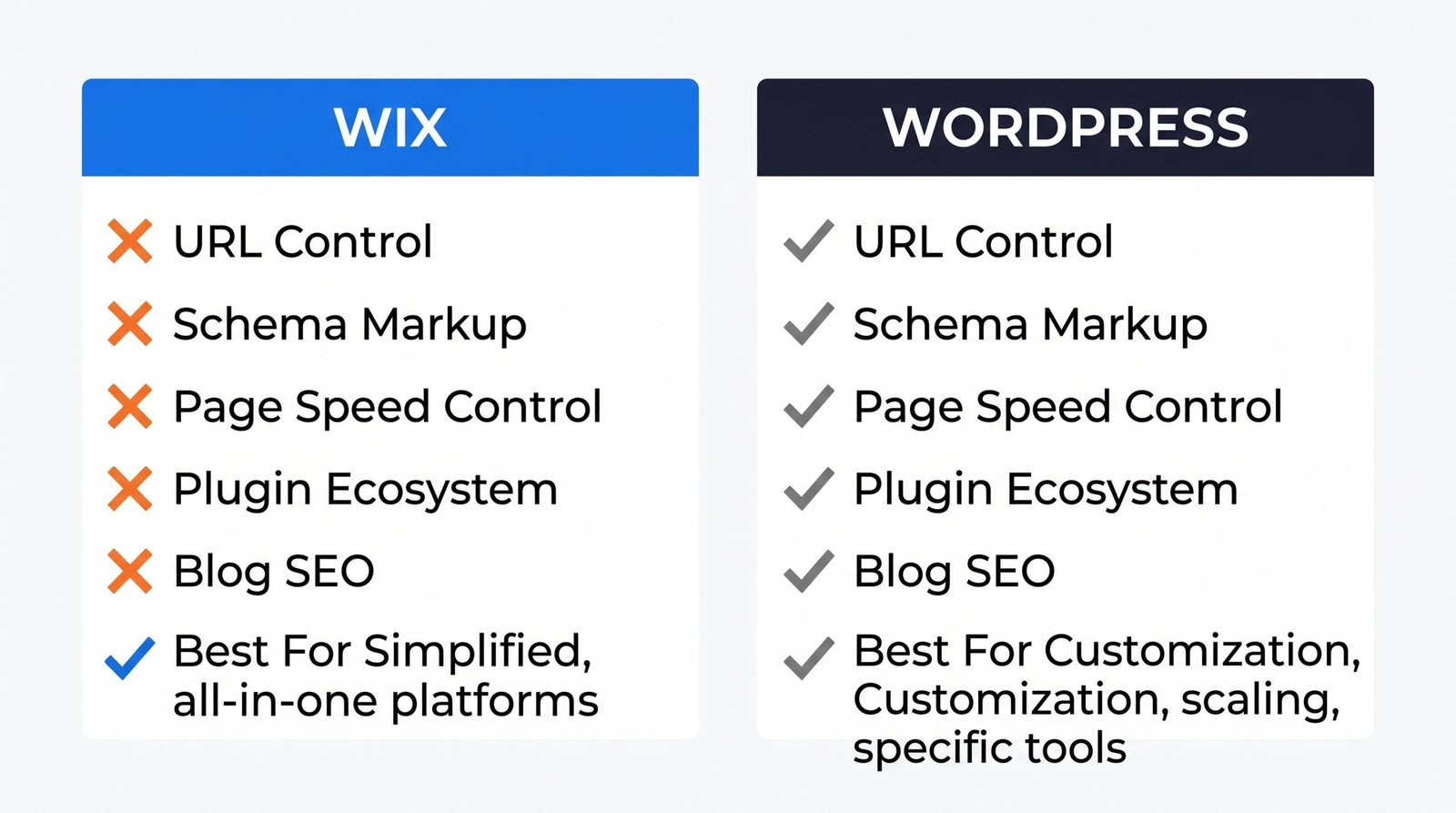
The Wix versus WordPress debate has gotten more nuanced than the old “Wix bad, WordPress good” framing. Both platforms have legitimate use cases. Here’s how they compare on the SEO factors that actually matter.
| Feature | Wix | WordPress |
|---|---|---|
| URL control | Static pages have clean URLs. Blog posts forced to use /post/ prefix. No deep customization. | Full control. Customize permalink structure globally and per post type. Can use any pattern. |
| Schema markup | Basic auto-generated schema for products, events, articles. Custom JSON-LD requires Velo or manual injection in SEO Settings. | Plugin-driven. Yoast, RankMath, Schema Pro offer comprehensive schema with no code. Total flexibility. |
| Page speed control | Wix-managed hosting only. CDN included. TTFB capped by shared infrastructure. Limited caching options. | Choose your own host. Cloudflare, dedicated servers, custom caching. TTFB as low as you can afford. |
| Plugin/app ecosystem | Wix App Market has 300+ apps. SEO functionality is mostly built in. Limited third-party SEO tools. | 60,000+ plugins. Mature SEO plugin ecosystem with Yoast, RankMath, AIOSEO, SEOPress, and more. |
| Blogging SEO | Wix Blog with /post/ URL prefix. Built-in categories, tags, author profiles. No advanced content modeling. | Industry-standard blogging CMS. Custom post types, taxonomies, advanced fields. Anything is possible. |
| Best for | Small businesses, local services, portfolios, restaurants, photographers, sites under 200 pages with non-technical owners. | Content-heavy sites, large blogs, ecommerce stores beyond 500 products, sites requiring custom development. |
If you do go the WordPress route, choosing the right SEO plugin for WordPress matters as much as choosing WordPress itself. The plugin you select determines how much SEO friction your team experiences daily.
5 Common Wix SEO Mistakes to Avoid
These are the mistakes we see most often when auditing Wix sites. Each one is fixable in under an hour. Most are caused by Wix’s defaults being inappropriate for serious SEO work.
1. Leaving placeholder meta titles in place. When you duplicate a page in Wix, the SEO title duplicates too. We’ve seen sites with twelve different pages all carrying the same generic title because the owner forgot to edit each one. Audit your entire site’s title tags using Screaming Frog or by exporting your sitemap and checking each URL.
2. Forgetting to disable indexing on staging or hidden pages. Wix sometimes leaves test pages, thank-you pages, and template variations indexable by default. Go to each non-public page, find the SEO settings, and set it to noindex. Common pages to noindex: order confirmation, password reset, internal search results, tag archives with low content.
3. Installing too many Wix apps. Every app from the Wix App Market loads JavaScript on your site. Live chat, popups, analytics, exit intent, social sharing, all of them. Each one adds milliseconds to your INP score and weight to your page. Use the minimum number of apps you actually need. Uninstall the rest.
4. Treating the Wix Blog like a serious CMS. Wix Blog is fine for casual posting. It’s not built for scaled content operations. If you’re publishing more than two posts per week or managing a team of writers, you’ll outgrow it. Either accept its limits or migrate to a platform built for content.
5. Ignoring the Site Speed dashboard. Wix has a built-in Site Speed dashboard that shows your Core Web Vitals scores, identifies issues, and suggests fixes. Most Wix owners never open it. Find it under Marketing & SEO in your dashboard. Check it monthly. Fix what it flags.
When Should You Migrate from Wix to WordPress?
Migration is expensive. Even a small site costs $2,000 to $5,000 to migrate properly, including content transfer, URL redirects, design work, and SEO continuity protection. A larger site can run $20,000 or more. The migration also temporarily depresses traffic until Google fully recrawls and re-evaluates the new site. So the question is not “is WordPress better than Wix.” The question is “is WordPress so much better for my specific situation that the migration cost and traffic risk are worth it.”
Here’s the honest decision framework we use with clients.
Stay on Wix if:
- You’re a small business with under 50 pages of content.
- Your traffic is under 5,000 monthly organic visits.
- Your team has zero technical resources (no developer, no SEO specialist, no IT support).
- Your conversion happens off-site (phone calls, in-person visits, email contact).
- You’re already ranking well for your target keywords.
- Your content needs are simple: static service pages, an About page, contact, a small blog.
Consider migrating if:
- You’re hitting Wix’s limits on URL structure, schema, or technical SEO.
- Your traffic is growing past 10,000 monthly visits and page speed is hurting conversions.
- You’re publishing more than 10 articles per month.
- You need custom post types, complex taxonomies, or advanced content modeling.
- Your team includes a developer or SEO specialist who can manage WordPress properly.
- You’re running an ecommerce operation with 100+ SKUs and outgrowing Wix Stores. A proper ecommerce SEO guide outlines the technical requirements that platforms like WooCommerce or Shopify handle natively.
Definitely migrate if:
- You’re competing in a content-heavy vertical (finance, health, legal, software) where technical SEO is a competitive moat.
- You need full server control for performance reasons (TTFB targets under 200ms).
- You’re operating an enterprise site with 1000+ pages.
- You require granular access control, role management, or multi-author workflows.
- You’ve tested Wix thoroughly and confirmed specific platform limitations are blocking ranking gains.
For most businesses reading this guide, the answer is “stay on Wix and optimize properly.” The platform is good enough. The migration cost rarely pays back unless you’re in the “definitely migrate” category. Run the math before you commit.
FAQ
Is Wix good for SEO in 2026?
Yes, Wix is good for SEO in 2026 for most use cases. The platform handles SSL, mobile responsiveness, structured data, sitemaps, and basic on-page SEO well. The limitations are real (the /post/ URL prefix, shared hosting TTFB, JavaScript rendering issues for AI crawlers) but manageable for small to medium sites. We suggest Wix for businesses with under 200 pages and non-technical teams.
Can you do SEO on a free Wix site?
Not effectively. Free Wix sites use a wixsite.com subdomain (like yourname.wixsite.com/sitename), which damages your branding and credibility. They also display Wix ads, which slow page speed and look unprofessional. For any serious SEO work, upgrade to a paid plan that includes a custom domain. The Combo plan starts at around $16/month and includes the SEO features needed for ranking.
Does Wix support structured data/schema markup?
Yes. Wix automatically generates schema for common page types (products, events, articles, recipes). For custom schema, use the SEO Settings panel on each page, where you can add raw JSON-LD inside the Additional Tags section. Advanced users can inject schema programmatically via Velo, Wix’s developer platform, using the wixSeo API. This covers FAQPage, HowTo, LocalBusiness, Person, and any other schema.org type.
Is Wix or WordPress better for SEO?
It depends on your situation. WordPress offers more control, a larger plugin ecosystem, and better technical SEO ceiling. Wix is easier to use, requires no technical maintenance, and is sufficient for most small business needs. We suggest Wix for sites under 200 pages with non-technical owners, and WordPress for content-heavy sites, large ecommerce stores, or teams with development resources.
How long does it take for a Wix site to rank on Google?
New Wix sites typically take 3 to 6 months to start ranking for competitive keywords, the same as any other platform. The first 30 days are usually spent on indexing and initial crawl. Months 2 through 4 see gradual position improvements as Google evaluates content quality and builds trust. By months 5 to 6, properly optimized sites with quality backlinks start ranking on page 1 for less competitive terms. Highly competitive keywords can take 12 months or more, regardless of platform.