
Is Webflow good for SEO? Yes. Webflow publishes fully-rendered static HTML at publish time, which means Google AND AI engines like ChatGPT, Perplexity, and Claude can read every page directly. That is a real advantage over JavaScript-heavy site builders. Out of the box you get clean semantic HTML, automatic SSL via Cloudflare, a globally distributed Fastly CDN, an auto-generated XML sitemap, granular meta tag controls on every page, and a built-in 301 redirect manager.
Is Webflow Good for SEO?
Short answer: yes, and in 2026 it is better positioned than most builders. The reason is structural. Webflow compiles your design into static HTML, CSS, and a minimal amount of JavaScript at publish time. That means search engine crawlers, including the new generation of AI crawlers, see your content immediately without having to execute JavaScript to render the page. A React or Vue site built with client-side rendering loads an empty shell and asks the browser to assemble the content. Webflow does not work that way.
That said, Webflow is not a magic SEO button. It gives you the foundation, but you still have to do the work. Here is the honest breakdown.
What Webflow does well
- Static HTML output: Pages are pre-rendered, so AI crawlers and Googlebot read them with zero JavaScript execution required.
- Clean semantic markup: Headings, links, and structural elements ship as proper HTML tags without bloated wrapper divs.
- Automatic SSL: Every site gets an HTTPS certificate through Cloudflare. No manual configuration.
- Global CDN: Webflow Hosting runs on Fastly, with edge locations on six continents.
- Fine-grained meta controls: Title tag, meta description, Open Graph tags, and canonical URL on every single page.
- Automatic XML sitemap: Generated at /sitemap.xml the moment you publish.
- Built-in 301 redirect manager: Add redirects directly in Project Settings without touching a server config file.
- Robots.txt and noindex controls: Granular control at the project and page level.
Where Webflow falls short
- No built-in schema editor: Webflow 2.0 removed the schema generator, so structured data has to be added manually via custom code or embed components.
- Sparse plugin ecosystem: WordPress has Yoast, Rank Math, and AIOSEO. Webflow does not have an equivalent. You build the workflows yourself.
- CMS pagination is manual: Collection list pagination generates /page/2, /page/3 URLs with no automatic rel=”next/prev” handling. You decide how to treat them.
- Steeper learning curve: If you have only used Wix or Squarespace, the Designer has more surface area. The trade-off is more control.
Webflow vs WordPress vs Squarespace vs Wix for SEO
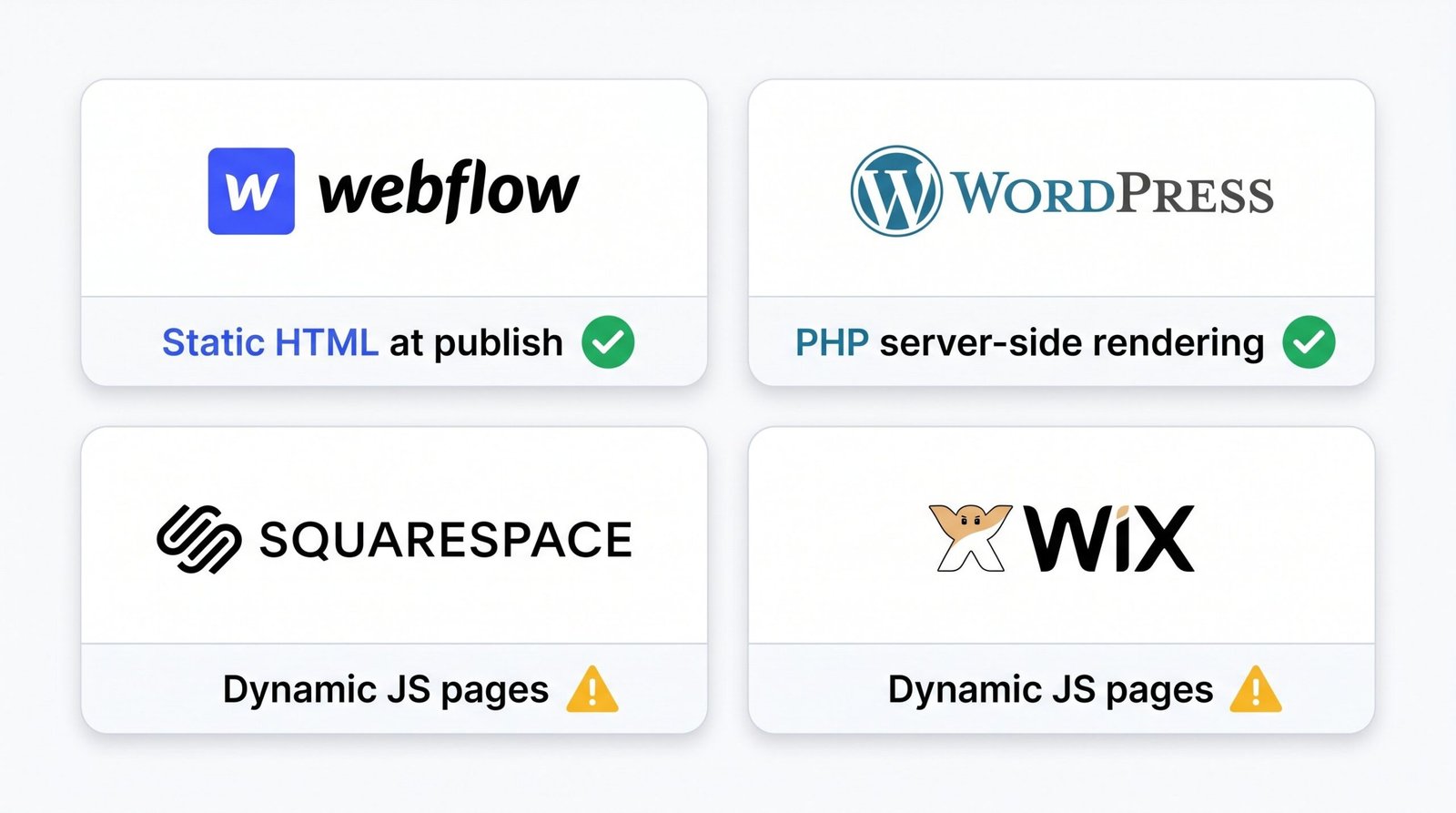
Each platform has a different SEO ceiling. Here is the side-by-side.
| Feature | Webflow | WordPress | Squarespace | Wix |
|---|---|---|---|---|
| Rendering approach | Static HTML at publish | Server-rendered PHP | Server-rendered + client hydration | Server-rendered with heavy JS |
| AI crawler visibility (2026) | Excellent | Excellent | Good | Fair |
| Built-in SSL | Yes (Cloudflare) | Host-dependent | Yes | Yes |
| CDN hosting | Yes (Fastly) | Host-dependent | Yes | Yes |
| XML sitemap (auto) | Yes | Via plugin | Yes | Yes |
| Meta tag controls | Per-page, full control | Via SEO plugin | Per-page, full control | Per-page, basic |
| 301 redirect manager | Built-in | Via plugin | Built-in | Built-in |
| Schema markup tools | Manual JSON-LD | Strong (plugins) | Limited auto-schema | Auto + custom |
| SEO plugin ecosystem | Minimal | Massive (Yoast, Rank Math) | None | Native Wix SEO Hub |
| Core Web Vitals control | High | Variable (depends on theme/host) | Medium | Medium |
| CMS/blog SEO depth | Strong (Collections) | Strongest | Strong | Moderate |
| Ease of use for SEO | Moderate | Plugin-dependent | Easy | Easy |
The headline difference: WordPress wins on raw flexibility and plugin depth, but only if you actually use those plugins well. Webflow wins on default output quality. Squarespace is the easiest option but caps your control. Wix has improved a lot, and you can read our full Wix SEO guide if you are comparing it directly. For the Squarespace side of the conversation, our Squarespace SEO guide covers the platform’s specific quirks.
For agencies, the practical answer is usually: Webflow if the design matters and the client wants visual control, WordPress if the content velocity is high and the team is technical, Squarespace for the smallest budgets, Wix for non-technical owners who want a guided experience.
Webflow SEO Settings: The Foundation
Before you write a single piece of content, configure these settings. Most ranking problems on Webflow sites trace back to one of these eight items.
1. Title tags and meta descriptions
Every page in Webflow has a Page Settings panel. Open it by clicking the gear icon next to the page name in the Pages panel. Scroll to SEO Settings. Set the Title Tag (under 60 characters is the safe zone) and Meta Description (around 150 to 160 characters). For CMS Collection template pages, you can bind these fields to Collection data using the binding selector.
2. Canonical URLs
Webflow automatically generates a canonical tag pointing to the published page URL. You only need to override it in two cases: when you syndicate content and want the canonical to point elsewhere, or when you have functionally identical pages on different URLs. The override field lives in Page Settings, in the same SEO section.
3. Noindex and robots meta tag
To exclude a single page from search results, open Page Settings and toggle off “Sitemap Indexing.” This adds the noindex meta tag and removes the page from the auto-generated sitemap. We suggest using this for thank-you pages, internal search results, and any page that has no SEO value.
4. Robots.txt
Webflow auto-generates a robots.txt file at /robots.txt. You can customize it in Project Settings under SEO. Adding disallow rules here blocks specific paths from crawling, but be careful: a misconfigured robots.txt can take your whole site out of Google overnight.
5. XML sitemap
Live at /sitemap.xml on every published Webflow site. It updates automatically when you publish. Submit the URL to Google Search Console under Sitemaps. Bing Webmaster Tools accepts it too, which matters more now that Bing powers ChatGPT search.
6. URL slugs
For static pages, the slug is set in Page Settings. For CMS Collection items, it is set per item in the Collection editor. Best practice: keep slugs short, lowercase, hyphenated, and descriptive. Avoid auto-generated slugs that include dates or numeric IDs for blog content. Once a slug is live and indexed, changing it requires a 301 redirect.
7. 301 redirects
Project Settings, Hosting tab, Redirects section. Add the old path and the new path. Webflow supports wildcards using a colon followed by a variable name. For example, /old-blog/:slug to /blog/:slug catches every old blog URL and forwards it to the new structure. Keep your redirect map clean. Chains of redirects pointing to other redirects slow crawlers down.
8. Favicon and webclip
Project Settings, Branding tab. Upload a 32×32 favicon and a 256×256 webclip. The favicon shows up in browser tabs and in search result snippets, which is a small but real CTR signal.
The Staging Subdomain Problem (And the Fix)
Every Webflow site has two URLs. The custom domain (yoursite.com) and the staging subdomain (yoursite.webflow.io). If you do not block the staging URL from being indexed, Google sees two identical sites and one of them will outrank the other. Usually it is the wrong one.
This is the single most common Webflow SEO mistake we see in audits.
How to fix it
- Open Project Settings.
- Go to the SEO tab.
- Find the “Subdomain Indexing” toggle.
- Set it to “Disable Subdomain Indexing.”
- Republish the site.
This tells Webflow to inject a noindex meta tag on every page served from the webflow.io subdomain.
How to verify the fix
Visit yoursite.webflow.io in a browser, right-click, and View Page Source. Search the source for “noindex.” You should see a meta robots tag with content=”noindex.” If you do, you are clean. Then go to Google and search “site:yoursite.webflow.io” to check for any pages already indexed. If results appear, request removal in Google Search Console.
Core Web Vitals on Webflow
Core Web Vitals are Google’s set of page experience metrics: Largest Contentful Paint (LCP), Cumulative Layout Shift (CLS), and Interaction to Next Paint (INP). INP replaced First Input Delay as a core metric in March 2024. Where FID only measured the responsiveness of the first interaction, INP measures the worst-case latency across all interactions during a page visit. For Webflow sites, this is the metric most likely to need attention, because complex Webflow Interactions and animations can introduce input lag.
You can read Google’s full Core Web Vitals documentation for the technical specification.
What Webflow handles automatically
- Fastly CDN: Globally distributed, with edge locations close to most users. This pulls LCP down on its own.
- HTTP/2 and HTTP/3: Modern multiplexed protocols are enabled by default.
- Brotli and GZIP compression: All text assets (HTML, CSS, JS) ship compressed.
- Auto CSS and JS minification: Happens at publish time. No configuration needed.
What you control
- Images: Use WebP wherever possible. Webflow auto-serves WebP if the browser supports it. Enable lazy loading in the Image element settings. Set responsive image sizes so mobile users do not download desktop-resolution files.
- Custom code: Third-party scripts (analytics, chat widgets, A/B testing tools) added via Page Settings or Project Settings Custom Code can wreck INP. Load them with the async or defer attribute, and only on the pages where they are needed.
- Fonts: System fonts (San Francisco, Segoe UI, Roboto) load instantly because the user already has them. Google Fonts requires an external DNS lookup and a font file download. Each Google Font weight is a separate request.
- Webflow Interactions: Complex scroll-triggered animations and timeline-based interactions can be heavy. Test INP after building them. If a page feels janky on mid-range Android, it will fail INP.
The connection between Core Web Vitals and rankings is real but not always direct. For the broader picture, see our guide to on-page SEO fundamentals, which covers how performance fits alongside content and link factors.
On-Page SEO in the Webflow Designer
Once your foundation is set, the day-to-day SEO work happens inside the Webflow Designer. A few mechanics tend to trip designers up.
Setting heading tags correctly
This is the most common mistake we see. In Webflow, the visual size of text and the HTML heading tag are decoupled. A “Heading 2” style does not mean the element is an H2. You set the actual HTML tag in the Element Settings panel, under the Typography section, in the Tag dropdown. You can have a big visual headline that is actually a paragraph, or small text that is an H1. Always verify.
The rule: one H1 per page, used for the main topic. H2 for major sections. H3 for subsections under those.
Image alt text
Alt text is set on the image element itself, not in the Asset Manager. Click an image in the Designer, open the Image Settings panel, and fill in the Alt Text field. Many people set alt text in the Asset Manager and assume it carries over. It does not on every element. Always check the per-element setting, especially for images bound to CMS fields, where alt text can be bound to a Collection field.
Open Graph settings
Page Settings has a dedicated Open Graph section. Set the OG Title, OG Description, and OG Image. Twitter pulls these via twitter:card if no twitter-specific tags are set. The OG Image should be 1200×630 pixels for clean rendering across LinkedIn, X, and Facebook.
The Webflow AI SEO Audit panel
New in 2026, this is the single most useful addition to the Designer in years. Open it with Shift+A or via the Designer’s Audit panel. It scans the entire site and flags:
- Pages missing title tags or meta descriptions
- Images without alt text
- Broken heading hierarchies (jumping from H1 to H4, multiple H1s, etc.)
- Pages excluded from the sitemap that should not be
- Pages included in the sitemap that probably should not be (thin content, utility pages)
- Slow-loading images and oversized assets
Run it before every major publish. It catches issues that would otherwise require a third-party tool.
Webflow CMS Collections SEO (The Part Most Guides Skip)
Webflow Collections are the dynamic content engine. A Collection is a structured database (blog posts, case studies, products, team members) with template pages that render each item. Getting Collections right is where the SEO ceiling on a Webflow site lives or dies.
Binding meta fields to Collection data
On a Collection template page, open Page Settings. Next to the Title Tag field is a small purple icon. Click it to bind the title to a Collection field. Most teams bind:
- Title Tag to a “SEO Title” Collection field (with fallback to the post’s main title)
- Meta Description to a “SEO Description” field or the post’s summary field
- OG Image to the post’s featured image field
The fallback pattern matters. Give editors two fields: a primary “Title” they always fill in, and an optional “SEO Title” they only fill in when they want to override. This way you never ship a blank title tag.
URL slug best practices for Collection items
Webflow auto-generates slugs from the item name. Audit these before publishing. Long slugs (more than five or six words) get truncated in search results. Slugs with year-month patterns date your content. Slugs with question marks (from Collection names with apostrophes) can break.
The pagination problem
Webflow Collection Lists with more than 100 items generate paginated URLs (/blog?page=2, /blog?page=3). Webflow does not automatically add rel=”next” and rel=”prev” tags. Google deprecated those tags officially in 2019, but the indexation question remains. Two viable approaches:
- Noindex the paginated pages: Treat /blog?page=2 and beyond as utility pages. Add a noindex meta tag via custom code that fires on URLs containing ?page=. The first page (/blog) stays indexed.
- Treat each page as independently valuable: Useful when each page surfaces unique items. Let them all index, but make sure each has a unique title and meta description (you can append the page number via custom code).
For most blogs, we suggest option one. Paginated archives rarely rank for anything useful.
No-indexing thin archive pages
Category pages, tag pages, and the root /blog/ index can be thin if they only list titles with no original copy. If a category page has fewer than five items and no introductory content, consider noindexing it. The exception is when the category itself targets a keyword: in that case, write 200 to 400 words of original copy at the top, and keep it indexed.
OG image binding
Bind the OG Image field on Collection template pages to the post’s featured image Collection field. This way every blog post gets a unique social card automatically. The featured image should be 1200×630 or you risk awkward cropping on Facebook and LinkedIn.
Adding Structured Data to Webflow
Webflow 2.0 removed the visual schema editor that existed in earlier versions. The replacement is manual JSON-LD injection, which is actually the format Google prefers anyway. Here is the working pattern.
Method 1: Page Settings > Head Code (static pages)
For a static page (an About page, a service page, a homepage), open Page Settings, scroll to Custom Code, and paste the JSON-LD into the Inside <head> tag field.
<script type="application/ld+json">
{
  "@context": "https://schema.org",
  "@type": "Article",
  "headline": "Your Page Title",
  "datePublished": "2026-01-01",
  "dateModified": "2026-05-01",
  "author": {
    "@type": "Person",
    "name": "Author Name"
  }
}
</script>
For Article schema specifically, add an image property pointing to the featured image URL and a publisher property pointing to your organization. Validate with Google’s Rich Results Test before publishing.
Method 2: Embed Component (CMS template pages)
For CMS template pages where you want JSON-LD that pulls per-item data, you cannot use Page Settings Custom Code, because that code is static. Instead, drop an HTML Embed element into the Collection template page. Inside the embed, write the JSON-LD and use the CMS field tokens (curly-brace placeholders) to inject Collection data.
An Embed-based Article schema for a blog Collection template might look like this:
<script type="application/ld+json">
{
  "@context": "https://schema.org",
  "@type": "Article",
  "headline": "{{Post Title}}",
  "datePublished": "{{Published Date}}",
  "dateModified": "{{Updated Date}}",
  "image": "{{Featured Image URL}}",
  "author": {
    "@type": "Person",
    "name": "{{Author Name}}"
  },
  "publisher": {
    "@type": "Organization",
    "name": "Your Brand",
    "logo": {
      "@type": "ImageObject",
      "url": "https://yoursite.com/logo.png"
    }
  }
}
</script>
For FAQ sections on blog posts, FAQPage schema is one of the highest-ROI markups you can add. It triggers rich snippets in some queries.
<script type="application/ld+json">
{
  "@context": "https://schema.org",
  "@type": "FAQPage",
  "mainEntity": [
    {
      "@type": "Question",
      "name": "Is Webflow good for SEO?",
      "acceptedAnswer": {
        "@type": "Answer",
        "text": "Yes. Webflow publishes static HTML at publish time, which means Google and AI engines can read every page directly."
      }
    },
    {
      "@type": "Question",
      "name": "Does Webflow generate a sitemap automatically?",
      "acceptedAnswer": {
        "@type": "Answer",
        "text": "Yes. Every Webflow site has an auto-generated XML sitemap at /sitemap.xml."
      }
    }
  ]
}
</script>
For a deeper walkthrough of schema strategy beyond the basics, see Google’s structured data documentation. And if you want to run a structured data check as part of a broader review, our guide to running a technical SEO audit walks through the full checklist.
AI Crawlers and Webflow in 2026
This is the most differentiated reason to take Webflow seriously right now. AI discovery engines (ChatGPT search, Perplexity, Claude with web access, Google Gemini) crawl the web to build their knowledge indexes, and the crawlers they use have different capabilities than Googlebot.
Most AI crawlers in 2026 still cannot execute JavaScript at scale. They read raw HTML. That single fact reshapes the platform conversation.
What this means in practice
A React, Vue, or Angular application built with client-side rendering ships a near-empty HTML shell. The browser fills in the content by running JavaScript. AI crawlers see the shell, not the content. They cite the JS-heavy site less, or not at all, in their answers.
Webflow publishes the rendered HTML at build time. Every word, every heading, every link is in the static file. AI crawlers see everything. ChatGPT can cite your Webflow page. Perplexity will pull quotes directly from it. Gemini’s overview features can summarize it.
The practical implication: pages that exist fully in the static HTML get the visibility. Content that loads dynamically (via Webflow custom JavaScript, third-party widgets, or post-load embeds) is invisible to AI crawlers, even if it renders fine for users. This is the same calculus that web app SEO teams have wrestled with for years, just inverted: instead of trying to retrofit static rendering onto a JS framework, Webflow gives it to you for free.
One important exception
Webflow Memberships gated content is intentionally not crawlable. Pages behind a member login do not render publicly, which is correct behavior. If you want gated content to influence rankings, you need a public marketing page that previews or summarizes it. The gated content itself stays gated.
How to maximize AI crawler visibility
- Keep critical content (the actual paragraphs that answer the user’s question) in static HTML, not loaded by post-render scripts.
- Use proper heading hierarchy so AI crawlers understand structure.
- Add FAQPage and HowTo schema where appropriate. AI engines parse schema heavily.
- Write self-contained pages. AI engines often quote a single page without context.
- Keep the page weight reasonable. Some AI crawlers truncate large pages.
For an overview of what the platform’s positioning looks like from the inside, Webflow’s SEO feature page lays out their own framing of the advantages.
Webflow SEO Checklist (Pre-Launch, Post-Launch, CMS)
Use this checklist on every Webflow project. It is the same one we run against client sites during audits.
Phase 1: Pre-Launch
- [ ] Set unique Title Tag on every page (under 60 characters)
- [ ] Set unique Meta Description on every page (around 150 to 160 characters)
- [ ] One H1 per page, used for the main topic
- [ ] Heading hierarchy is clean (H2 for sections, H3 for subsections, no skips)
- [ ] Alt text on every image (set at the element level, not just Asset Manager)
- [ ] Disable Subdomain Indexing (Project Settings > SEO toggle)
- [ ] 301 redirects set up for any URL changes from previous site
- [ ] URL slugs reviewed: short, lowercase, hyphenated, no dates or IDs in blog slugs
- [ ] Canonical URLs set correctly (Webflow handles by default, override only where needed)
- [ ] Open Graph Title, Description, and Image set on every page
- [ ] OG Image is 1200×630 pixels
- [ ] JSON-LD schema injected (Article, Organization, FAQPage as appropriate)
- [ ] Robots.txt reviewed (no accidental disallows)
- [ ] Favicon and webclip uploaded (Project Settings > Branding)
- [ ] Google Search Console verified and connected
- [ ] Google Analytics (or alternative) installed
- [ ] Bing Webmaster Tools verified (matters more in 2026 for AI search)
- [ ] Custom 404 page designed
Phase 2: Launch and Post-Launch
- [ ] Submit /sitemap.xml to Google Search Console
- [ ] Submit /sitemap.xml to Bing Webmaster Tools
- [ ] Run PageSpeed Insights on five key pages, fix any failing CWV metric
- [ ] Run Google’s Rich Results Test on any page with schema markup
- [ ] Verify staging URL (yoursite.webflow.io) returns noindex in the source
- [ ] Run the Webflow AI SEO Audit (Shift+A) and resolve flagged issues
- [ ] Check the live site for broken internal links
- [ ] Review Core Web Vitals report in Search Console after 28 days of live data
Phase 3: CMS Sites
- [ ] Bind Title Tag on Collection templates to a Collection field
- [ ] Bind Meta Description on Collection templates to a Collection field
- [ ] Bind OG Image to the post’s featured image Collection field
- [ ] Set pagination strategy (noindex paginated pages or unique titles per page)
- [ ] Audit thin archive pages (categories, tags, root blog index) and noindex if under-resourced
- [ ] Inject JSON-LD schema (Article, BlogPosting, FAQPage) via Embed components on template pages
For Webflow’s own perspective on what to ship, Webflow’s official SEO documentation covers many of these from the platform side. Our checklist goes deeper on the CMS and AI crawler dimensions.
Frequently Asked Questions
Is Webflow good for SEO?
Yes. Webflow publishes fully-rendered static HTML at publish time, which means Google and AI crawlers can read every page without executing JavaScript. You also get automatic SSL, a global Fastly CDN, an auto-generated XML sitemap, granular meta controls on every page, and a built-in 301 redirect manager. The main limitations are the lack of a built-in schema editor and a smaller plugin ecosystem than WordPress.
Does Webflow have an SEO plugin like WordPress?
No. Webflow does not have a plugin marketplace comparable to WordPress (Yoast, Rank Math, AIOSEO). Most SEO functionality is built into the Designer and Project Settings. Schema markup, advanced redirects, and bulk SEO operations are handled through custom code, the CMS, or third-party tools that connect via the Webflow API.
How do I add structured data (schema markup) to Webflow?
Webflow 2.0 removed the built-in schema editor, so you add structured data manually as JSON-LD. For static pages, paste the script into Page Settings > Custom Code, inside the head tag. For CMS template pages, use an HTML Embed element with CMS field bindings inside the JSON-LD. Validate every page with Google’s Rich Results Test before publishing.
Is Webflow better than WordPress for SEO?
It depends on the project. Webflow wins on default output quality, Core Web Vitals control, and the ease of shipping clean static HTML for AI crawlers. WordPress wins on plugin depth, content velocity, and large-scale editorial workflows. For most marketing sites under 500 pages, Webflow is a stronger default. For content-heavy publishers or sites needing complex SEO customization, WordPress with Rank Math or Yoast still has more headroom.
Does Webflow automatically generate an XML sitemap?
Yes. Every published Webflow site has an XML sitemap at /sitemap.xml that updates automatically as you publish, unpublish, or add Collection items. You can disable specific pages from the sitemap in Page Settings using the Sitemap Indexing toggle. Submit the sitemap URL to Google Search Console and Bing Webmaster Tools after launch.
How do I stop my webflow.io staging URL from appearing in Google?
Open Project Settings, go to the SEO tab, and set the Subdomain Indexing toggle to “Disable Subdomain Indexing.” Then republish. This injects a noindex meta tag on every page served from the webflow.io subdomain. Verify by visiting the staging URL, viewing page source, and searching for “noindex” in the meta robots tag.
Can I build a blog on Webflow that ranks on Google?
Yes. Webflow CMS Collections are a strong foundation for blog SEO if you configure them correctly. Bind title tags, meta descriptions, and Open Graph images to Collection fields, use clean URL slugs, inject JSON-LD Article schema via Embed components, and decide a pagination strategy for archive pages. Many high-traffic blogs run on Webflow, including ones in competitive niches.
RELATED POSTS
View all


On-Page SEO: The Complete 2026 Guide (With Code Examples and a Checklist)
May 26, 2026 | by Ian Adair

Local SEO for Small Business: The Complete 2026 Action Plan
May 19, 2026 | by Ian Adair