SEO for Shopify: The Complete 2026 Guide (Technical Deep Dives Included)
May 23, 2026 | by Ian Adair
SEO for Shopify: The Complete 2026 Guide (Technical Deep Dives Included)
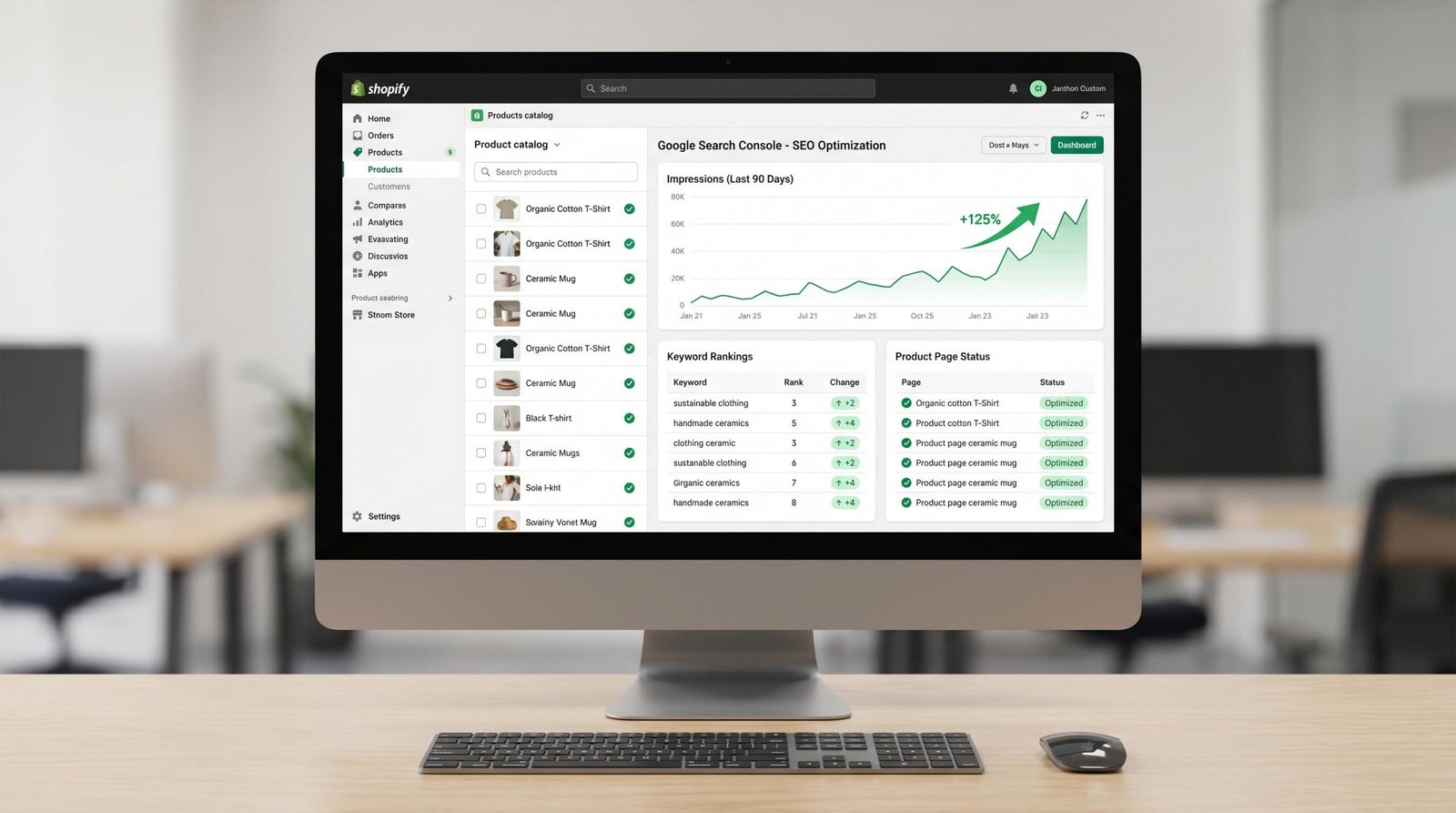
Shopify gives you a fast hosted platform with built-in SEO basics, but it ships with quirks that quietly tank rankings if you ignore them. The duplicate URL problem at /collections/handle/products/slug, the app bloat strangling your Interaction to Next Paint score, the absence of native JSON-LD beyond the bare minimum, these are gaps every generic Shopify SEO guide skips. This guide does not. If you want organic traffic that compounds, you need to know what the platform handles, what it breaks, and what you have to fix yourself.
Is Shopify Good for SEO? (Quick Answer)
Shopify is genuinely good for SEO out of the box. It gives you fast hosting, mobile-responsive themes, automatic canonical tags, an editable robots.txt, server-side rendering, and HTTPS by default. The platform’s weak spots are duplicate product URLs across collections, limited schema markup, app bloat slowing Core Web Vitals, and rigid URL structures you cannot fully customize. Solid foundation, real ceilings.
Here’s how Shopify breaks down between what it handles automatically and what falls on you.
| SEO Element | Handled by Shopify | Needs Manual Work |
|---|---|---|
| HTTPS / SSL | Yes, automatic on all stores | None |
| Mobile responsiveness | Yes, via modern themes | Verify your specific theme passes Core Web Vitals |
| XML sitemap | Auto-generated at /sitemap.xml | Submit to Search Console manually |
| Canonical tags | Auto-set on product/collection pages | Audit for cross-collection duplicates |
| Robots.txt | Auto-generated with sensible defaults | Customizable via robots.txt.liquid (Shopify 2.0+) |
| Page speed / Core Web Vitals | Fast hosting, CDN included | Audit apps, theme code, third-party scripts |
| Schema markup | Basic product schema in most themes | Add FAQ, Breadcrumb, Review, Organization JSON-LD |
| URL structure | Standardized format | Cannot remove /products/, /collections/, /pages/ |
| Meta titles and descriptions | Editable per page | You write them, no automation built in |
| 301 redirects | Yes, manual URL Redirects tool | Maintain redirect map after slug changes |
WordPress users often ask whether Shopify offers the same SEO control as Yoast or Rank Math. The honest answer: it doesn’t. Our WordPress SEO plugin comparison covers the gap. Shopify trades granular control for managed simplicity. For most merchants that’s the right trade. For SEO obsessives it means knowing the workarounds.
For platform-agnostic strategy beyond Shopify, our complete ecommerce SEO guide goes deeper. Right now we’re focused on Shopify specifics.
The Shopify Canonical Tag Problem (And How to Fix It)
This is the single most misunderstood Shopify SEO issue. Here’s the problem in one sentence: every product on your store can be accessed at two URLs, and Google sees both.
Consider a product called “Linen Sand Pillow” in a collection called “Living Room”. Shopify generates these URLs:
yourstore.com/products/linen-sand-pillow(canonical product URL)yourstore.com/collections/living-room/products/linen-sand-pillow(collection-scoped URL)
Both URLs return a 200 status code. Both render the same product page. If you have 12 collections and a product appears in 5 of them, that product has 6 crawlable URLs pointing to the same content. Multiply by 500 products and you’ve got thousands of duplicate URLs Google has to sort out.
Shopify solves this with automatic rel="canonical" tags. On the /collections/living-room/products/linen-sand-pillow URL, Shopify inserts a canonical tag pointing back to /products/linen-sand-pillow. This tells Google “the version on /products/ is the master, consolidate ranking signals there.” Read Google’s canonical URL documentation if you want the full technical context on how this works.
When the canonical handling fails
The automatic canonical works correctly most of the time. The failures we see most often:
- Custom themes with broken canonical logic. Some older or heavily modified themes have
theme.liquidtemplates where the canonical tag was hardcoded incorrectly, set to the current URL instead of the canonical URL. Always check your<head>output on a collection-scoped product page. - Internal linking to non-canonical URLs. If your navigation, collection pages, or upsell sections link to
/collections/x/products/yinstead of/products/y, you’re sending mixed signals. Even with a canonical tag, you’re telling Google the collection-scoped version matters because that’s where your internal links point. - Paginated collection URLs.
/collections/living-room?page=2generates pagination URLs that, in some themes, do not self-canonicalize correctly. The page 2 URL should canonicalize to itself, not to page 1. Verify in view-source. - Variant-specific URLs with query strings.
/products/linen-sand-pillow?variant=12345should canonicalize back to the clean product URL. Most themes do this. Some do not.
The practical fix
Navigate to a product through a collection (so the URL shows /collections/x/products/y), then view page source. Search for rel="canonical". The href should point to yourstore.com/products/y, no collection in the path.
If the canonical is wrong, open your theme code editor and find the canonical block in theme.liquid. The correct Liquid is:
<link rel="canonical" href="{{ canonical_url }}">Shopify’s canonical_url Liquid object automatically resolves to the canonical version. If your theme uses {{ request.url }} or {{ shop.url }}{{ request.path }}, replace it with {{ canonical_url }}. That single change fixes most theme-level canonical bugs.
Then audit your internal links. In your collection template, your link to each product should be <a href="{{ product.url }}">, not <a href="{{ product.url | within: collection }}">. The within: collection filter generates the /collections/x/products/y URL. Removing it makes your internal links point to the canonical version, which consolidates SEO signals.
Keyword Research for Your Shopify Store
Most keyword research advice treats every page the same. That’s wrong for ecommerce. A product page, a collection page, and a blog post serve different search intents and should target different keyword shapes.
Page-type-specific intent matching
Product pages should target high-intent transactional or branded queries. Examples: “linen sand pillow 18×18”, “Brooks Ghost 15 men’s size 11”, “merino wool socks lifetime warranty”. These queries signal a shopper who knows what they want. Title tags and H1s lock onto the exact product, and you let the long-tail variations come through the description body and variant titles.
Collection pages should target broader category queries. “Throw pillows”, “running shoes men”, “merino wool socks”. These are top-of-funnel commercial queries. Your collection page is competing with category pages from Amazon, Target, and direct competitors. Include a real description block of 150 to 300 words above or below the product grid, because Google needs text to understand what makes your collection different.
Blog pages should target informational queries that lead to commercial intent. “How to choose throw pillow size”, “best running shoes for flat feet”, “merino wool vs cotton socks”. These queries pull in researchers who later become buyers. Your blog post answers the question and internally links to the relevant collection or product page.
The long-tail variant opportunity
Shopify product variants are an underused SEO asset. If you sell a t-shirt in 4 colors and 5 sizes, that’s 20 variants. Each variant has its own URL parameter. By default, none of these variants individually rank.
But the searches exist: “black cotton t-shirt size large”, “white linen shirt women’s medium”. You capture this traffic by writing variant-specific copy in your product description body that names each variant naturally, and by ensuring your product schema includes per-variant data so Google can show specific variants in rich results. We’ll cover that in the schema section.
Site Architecture: Building for Google and Customers
Shopify’s URL structure is rigid. You cannot remove /products/, /collections/, or /pages/ from the path. Stop trying. Instead, build your site architecture to work within those constraints.
Collection hierarchy: keep it flat
Shopify does not support true nested collections in the URL. A “Men’s Running Shoes” sub-collection lives at /collections/mens-running-shoes, not /collections/men/running-shoes. You can build menu hierarchy through navigation, but the URL stays flat.
Our suggestion: keep your conceptual hierarchy at two levels maximum. Top-level: “Men”, “Women”, “Accessories”. Second-level: “Men’s Running Shoes”, “Women’s Hiking Boots”, “Leather Belts”. Don’t go deeper. A third level fragments your link equity across too many low-volume pages.
URL slug discipline
Shopify auto-generates slugs from titles. The defaults are usually fine, but check three things:
- Length. Keep slugs under 60 characters. Shopify will generate something like
/products/extra-soft-100-percent-organic-cotton-fitted-bedsheet-king-size-navy-bluefrom a long title. Edit it down to/products/organic-cotton-fitted-sheet-king-navy. - Stopwords. Remove “and”, “the”, “for”, “with” from slugs. They don’t help ranking and add length.
- Numbers in slugs. If you sell the 2025 model and replace it with the 2026 model, decide upfront: do you reuse the same product slug and 301 the old one, or create a new product page? Reuse preserves backlinks but loses model-year specificity in URL. Either approach works, just pick one and stay consistent.
Internal linking that compounds
Shopify ships with weak internal linking by default. Product pages link to collections, collections link to products, but nothing links to the deep informational content that drives top-of-funnel traffic.
Your internal linking strategy: every blog post links to 2 to 4 relevant products or collections using descriptive anchor text, and every collection page links to 1 to 2 blog posts that help shoppers research the category. This creates a “topic cluster” structure where your blog content feeds traffic and authority to your commercial pages.
Pro tip: use Shopify’s metafield system to attach related blog posts to each collection. Then display them in the collection template. You get contextual internal links without manually editing each collection’s HTML.
On-Page SEO for Product and Collection Pages
The fundamentals matter more on Shopify than on most platforms because you have fewer levers. Get the on-page basics right and you’ll outrank competitors who chase exotic tactics.
Title tag templates
For product pages, use this template: {Product Name} | {Primary Attribute} | {Brand}. Example: “Linen Sand Pillow | Hand-Woven 18×18 | Brookspring”. That gets the product name first, the differentiator second, and the brand third. Total length stays under 60 characters in most cases.
For collection pages: {Collection} for {Audience} | {Brand}. Example: “Throw Pillows for Modern Homes | Brookspring”. Add the audience qualifier whenever it strengthens the keyword match, drop it if the collection name is already long.
For blog posts: {Question or Hook} | {Brand}. Example: “How to Choose the Right Throw Pillow Size | Brookspring”.
Meta description strategy
Shopify shows meta descriptions in SERP snippets when relevant. Write them for clicks, not for keyword density. Lead with the value proposition, include the primary keyword once, and end with a soft call to action. Keep it between 140 and 155 characters.
If you leave meta descriptions blank, Google generates them from page content. For your top 50 traffic pages, write them manually. For the long tail, Google’s auto-generation is usually acceptable.
Heading structure
On product pages, the H1 should be the product name. Period. Don’t get creative. Subheadings (H2, H3) cover features, specs, materials, care instructions, sizing, and FAQ blocks. Each subheading is an opportunity to naturally include variant attributes and long-tail keywords.
On collection pages, the H1 should match the collection name as the user searches for it. “Men’s Running Shoes” not “Run Like the Wind”. Save the brand voice for the description block beneath the H1.
Product descriptions that rank
The single biggest mistake on Shopify product pages: copy-pasting the manufacturer’s description. Every other store selling that SKU has identical text. Google sees thousands of identical product pages and ranks none of them.
Write original descriptions structured like this:
- First paragraph (50 to 80 words): What it is, who it’s for, the one thing that makes it different.
- Features list (5 to 8 bullet points): Concrete attributes with measurements, materials, and benefits.
- Use cases (100 to 150 words): When and where someone uses this product. This is where long-tail keywords naturally show up.
- Specs table: Dimensions, weight, materials, care instructions. Structured data goldmine.
- FAQ (3 to 5 questions): The questions customer service hears. Eligible for FAQ schema.
Total length: 400 to 700 words for premium products, 200 to 400 for commodity items. Yes, this is work. It’s also the difference between ranking and not.
Image alt text at scale
Alt text serves two functions: accessibility and SEO. Shopify lets you edit alt text per image in the admin, but doing this manually for 5,000 images is misery.
Options:
- Bulk CSV editing. Export your products as CSV, edit the alt text column, re-import. Free and reliable but tedious.
- Liquid templating fallback. If alt text is empty, your theme can output
{{ product.title }}as a fallback. This is automatic and acceptable as a baseline, but you lose the chance to differentiate alt text per image (front view, side view, detail shot). - SEO apps with bulk alt text features. Several of the best Shopify SEO apps include bulk alt text editors with templates. Worth the monthly cost if you have hundreds of products.
The alt text formula we suggest: {Product Name} {View or Detail} {Color or Variant}. Example: “Linen Sand Pillow front view sand color”. Descriptive, keyword-aware, not stuffed.
Technical SEO for Shopify: What Slows You Down
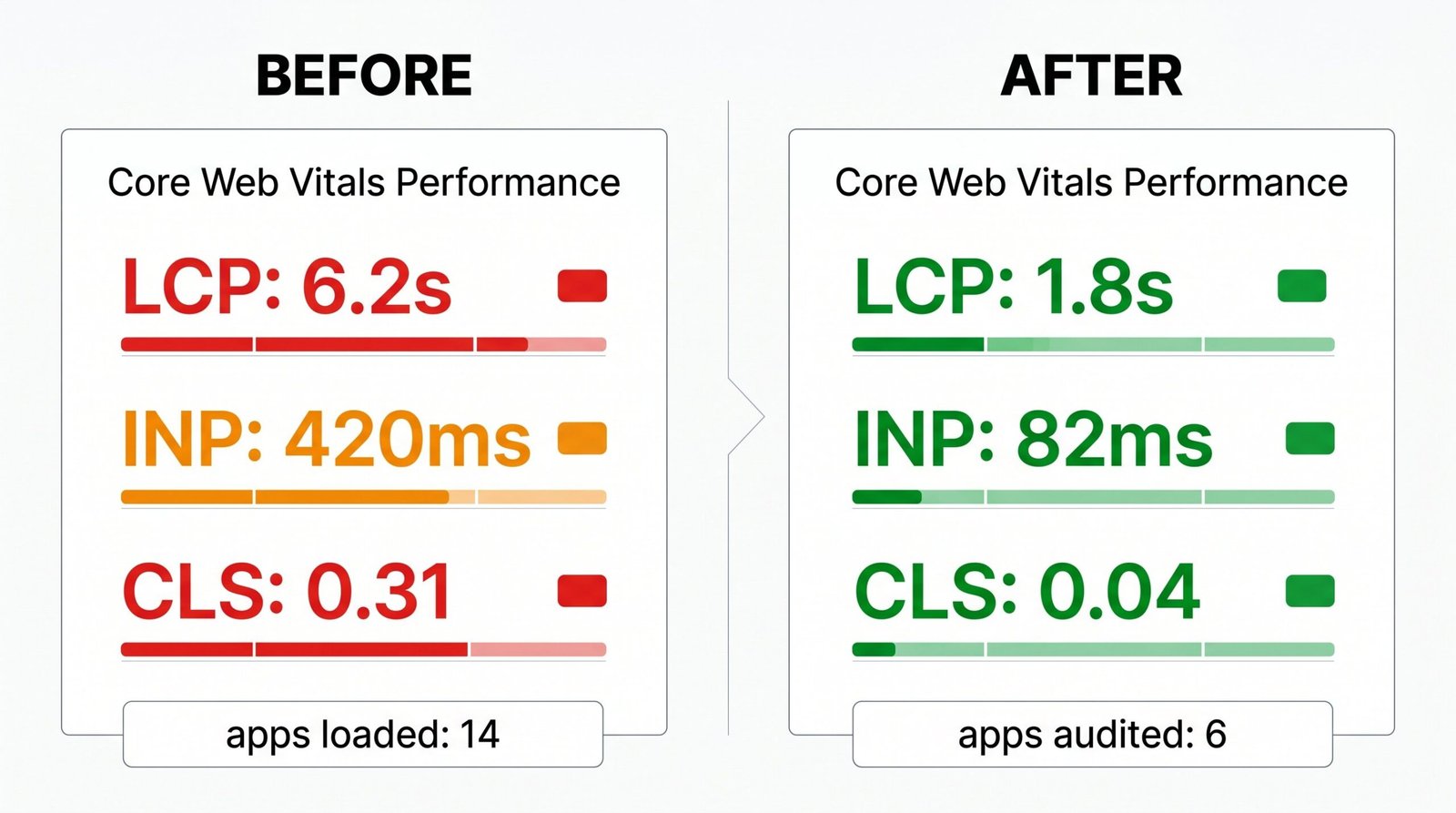
This is where most Shopify guides fall apart. They tell you to “optimize for speed” without explaining what specifically on Shopify slows you down. The answers are different on Shopify than on WordPress or custom builds, and the fixes are very specific.
Understanding Core Web Vitals on Shopify
Google measures three Core Web Vitals as ranking signals:
- Largest Contentful Paint (LCP): How fast the biggest visible element loads. Goal: under 2.5 seconds.
- Interaction to Next Paint (INP): How responsive the page feels when users tap or click. Goal: under 200 milliseconds. INP replaced FID in March 2024 and is much stricter.
- Cumulative Layout Shift (CLS): How much the page jumps around as it loads. Goal: under 0.1.
On Shopify, LCP and CLS are usually fine if you’re on a modern Online Store 2.0 theme. INP is where things break. INP measures how long it takes for the browser to respond to a user interaction (clicking, tapping, typing) and update the screen. Heavy JavaScript freezes this response time. Shopify apps inject heavy JavaScript.
App bloat: the real culprit
Every Shopify app that adds frontend functionality (reviews, upsells, popups, currency switchers, chat widgets) injects JavaScript into your theme. Each injection adds bytes, parsing time, and execution time. Five apps stack up to noticeable lag. Twenty apps make your store feel sludgy on mobile, and your INP score collapses.
To audit which apps are killing your INP:
- Open Chrome DevTools (right-click, Inspect).
- Go to the Network tab and reload your homepage on a throttled “Fast 3G” connection.
- Sort by transfer size. Look for third-party JavaScript files. Most apps load scripts from domains like
cdn.app-name.comorapp-name.shopifycloud.com. - Go to the Performance tab, record a session where you interact with the page. Look at the Main Thread timeline. Long yellow blocks are JavaScript execution, and those are the apps freezing INP.
- Cross-reference long-running scripts with your installed apps in Shopify admin.
Once you’ve identified the worst offenders, you have three choices: remove the app, replace it with a lighter alternative, or contact the app developer and ask if they can defer their script. Most reputable apps now offer async or deferred loading toggles. If they don’t, that’s a red flag.
For stores with 15+ apps, a structured technical SEO audit can map every script, every render-blocking resource, and every layout shift back to the responsible app. Worth doing once a quarter.
Theme speed: what to look for
Not all Shopify themes are equal. When selecting or evaluating a theme:
- Look for “Online Store 2.0” themes. They support JSON templates, sections everywhere, and modern Liquid. Themes built before 2021 carry technical debt.
- Check the theme’s PageSpeed score in the Shopify Theme Store before installing. Most themes show their performance score on the listing. Anything under 60 mobile is suspect.
- Demo speed test. Run the theme’s demo URL through
pagespeed.web.dev. The demo is usually the lightest the theme will ever be. Your installed version will be slower because of your apps, your images, and your customizations. - Avoid themes with bundled apps. Some “premium” themes come with built-in features (mega menus, currency switchers, age verifiers) implemented as separate app installations. You’re paying for the theme and inheriting app bloat.
The Shopify-built “Dawn” theme is the performance baseline. If you’re building from scratch or rebuilding, start with Dawn. It’s free, fast, and well-coded. Customize from there.
JavaScript and headless Shopify
Some stores go headless: Shopify backend (cart, checkout, products) with a frontend on Next.js, Hydrogen, or another framework. Done right, headless Shopify hits perfect Core Web Vitals. Done wrong, it cripples SEO because client-side rendered pages don’t expose content to crawlers until JavaScript executes. If you’re considering headless, use server-side rendering or static generation for all customer-facing pages, and verify rendered HTML with Google’s URL Inspection tool.
PageSpeed Insights walkthrough for Shopify
Run your homepage and a top product page through pagespeed.web.dev at least monthly. Focus on the mobile scores, because that’s what Google uses for ranking.
The diagnostics you’ll most commonly see on Shopify and how to fix them:
- “Reduce unused JavaScript.” Usually app scripts. Address per the app audit above.
- “Properly size images.” Shopify’s CDN serves multiple image sizes automatically, but only if your theme uses the
image_urlfilter with width parameters. Older themes hardcode image URLs and serve oversized images. - “Serve images in next-gen formats.” Shopify serves WebP automatically to supporting browsers, but only when your theme uses Liquid image filters. Custom-coded image tags break this.
- “Eliminate render-blocking resources.” Usually a theme issue. CSS files that should be deferred. Custom theme work to fix, or a theme switch.
- “Avoid large layout shifts.” Images without dimensions, web fonts loading after content. Fix by setting explicit width/height on images and using
font-display: swapon web fonts.
Schema Markup for Shopify Without Paying for an App
Shopify themes ship with basic product schema. Some ship with breadcrumb schema. Most don’t include FAQ schema, Review schema beyond product reviews, or Organization schema. You can add all of this yourself, in your theme files, without paying $20 a month for a schema app.
The schema specification we’re working from is the official Product schema specification. Anything you add should validate against that vocabulary.
Adding product schema directly in theme files
First, check what your theme outputs. View source on a product page and search for application/ld+json. If you see a block with "@type": "Product", validate it at search.google.com/test/rich-results.
If you have no product schema or it’s incomplete, here’s the JSON-LD block to add to your product.liquid or main-product.liquid template:
<script type="application/ld+json">
{
  "@context": "https://schema.org/",
  "@type": "Product",
  "name": {{ product.title | json }},
  "image": [
    {%- for image in product.images -%}
      {{ image | image_url: width: 1200 | prepend: 'https:' | json }}{%- unless forloop.last -%},{%- endunless -%}
    {%- endfor -%}
  ],
  "description": {{ product.description | strip_html | json }},
  "sku": {{ product.selected_or_first_available_variant.sku | json }},
  "brand": {
    "@type": "Brand",
    "name": {{ product.vendor | json }}
  },
  "offers": {
    "@type": "Offer",
    "url": {{ shop.url | append: product.url | json }},
    "priceCurrency": {{ cart.currency.iso_code | json }},
    "price": {{ product.selected_or_first_available_variant.price | money_without_currency | remove: ',' | json }},
    "availability": "{% if product.selected_or_first_available_variant.available %}https://schema.org/InStock{% else %}https://schema.org/OutOfStock{% endif %}",
    "itemCondition": "https://schema.org/NewCondition"
  }
}
</script>
That covers the core fields Google requires for product rich results. If you have reviews, add an aggregateRating object. If you have multiple variants with different prices, switch "offers" to an AggregateOffer with lowPrice and highPrice values.
BreadcrumbList for navigation
Breadcrumb schema shows your site hierarchy in search results: Home > Collections > Throw Pillows > Linen Sand Pillow. Add this to product.liquid:
<script type="application/ld+json">
{
  "@context": "https://schema.org",
  "@type": "BreadcrumbList",
  "itemListElement": [
    {
      "@type": "ListItem",
      "position": 1,
      "name": "Home",
      "item": {{ shop.url | json }}
    },
    {% if collection %}
    {
      "@type": "ListItem",
      "position": 2,
      "name": {{ collection.title | json }},
      "item": {{ shop.url | append: collection.url | json }}
    },
    {% endif %}
    {
      "@type": "ListItem",
      "position": {% if collection %}3{% else %}2{% endif %},
      "name": {{ product.title | json }}
    }
  ]
}
</script>
FAQ schema for collection and product pages
If your product description or collection description includes an FAQ section (and it should), wrap those questions in FAQ schema. Google often shows FAQ rich results as expandable answers under your search listing, which captures more SERP real estate.
One implementation pattern: add a metafield to your products called faq_pairs containing JSON like [{"q": "Question 1", "a": "Answer 1"}, ...]. Then in your template:
{% if product.metafields.custom.faq_pairs %}
<script type="application/ld+json">
{
  "@context": "https://schema.org",
  "@type": "FAQPage",
  "mainEntity": [
    {% assign faqs = product.metafields.custom.faq_pairs.value %}
    {% for faq in faqs %}
    {
      "@type": "Question",
      "name": {{ faq.q | json }},
      "acceptedAnswer": {
        "@type": "Answer",
        "text": {{ faq.a | json }}
      }
    }{% unless forloop.last %},{% endunless %}
    {% endfor %}
  ]
}
</script>
{% endif %}
Now you can manage FAQs through the Shopify admin via metafields, and the schema generates automatically.
Testing your schema
After adding any schema block, test three things:
- Validation. Run the page URL through Google’s Rich Results Test at
search.google.com/test/rich-results. Any errors mean Google will ignore the schema. Warnings are fine to ignore, errors are not. - Rendered output. View source and confirm the JSON-LD outputs cleanly with no Liquid syntax errors leaking through.
- Search Console enhancement reports. Within a few weeks of deploying schema, Search Console will report on detected structured data in the Enhancements section. If it shows zero items, your implementation didn’t take.
Shopify Blog: Turn Content into Search Traffic
Shopify’s built-in blog is competent. It’s not WordPress, but for ecommerce content marketing it does the job. The mistake most merchants make: treating the blog as an afterthought, posting once a quarter, and wondering why it doesn’t drive traffic.
How Shopify’s blog handles SEO
Every blog post gets a clean URL at /blogs/blog-name/post-slug. You can edit title tags, meta descriptions, URL slugs, and add featured images. Blog posts support tags, which generate tag archive pages at /blogs/blog-name/tagged/tag-name.
A warning on tags: tag archive pages are often thin content. If you tag 50 posts with “tips”, that archive page might rank for “tips” but it has no original content beyond the post snippets. We suggest noindexing tag archives unless you write custom descriptions for them. You can do this with a small edit to theme.liquid conditional logic.
Topic clusters that funnel traffic
The model that works: pick 5 to 10 “pillar” topics central to your store, write a comprehensive guide on each one, and surround each guide with 5 to 15 narrower posts that link back to the pillar. Every post links to relevant collections or products. Every pillar links to the collections it relates to.
Example for a pillow store:
- Pillar: “The Complete Guide to Throw Pillows” (3,000 words, links to throw pillows collection)
- Cluster posts: “How to Choose Throw Pillow Size”, “Mixing Patterns in Throw Pillows”, “Throw Pillow Fillings Compared”, “How Many Throw Pillows on a Sofa?”, “Best Throw Pillow Colors for Living Rooms”
Each cluster post answers a specific search query. Each links to the pillar guide and to relevant products. The pillar accumulates internal link equity from the cluster and ranks for the broad term. The cluster posts rank for their specific queries. Traffic funnels into product pages through contextual links.
Internal links from blog to commercial pages
Every blog post should link to at least 2 commercial pages (products or collections) with descriptive anchor text. Not “click here”, not “this product”. Use the product or category name as anchor text.
When you publish a new blog post, also add 1 to 2 internal links to it from existing related posts. This is the boring, manual work that compounds over years. Shopify doesn’t offer an internal linking suggestion tool natively, so keep a spreadsheet or use a third-party app.
Link Building for Shopify Stores
Backlinks still matter. Less than they did in 2015, more than zero. Shopify stores have specific link acquisition channels that work well and others that waste time.
Channels that work
Supplier and manufacturer links. If you sell products from established brands, ask the brands to add you to their “where to buy” or “authorized retailers” page. High-authority, topically relevant, often granted.
Digital PR for product launches. When you launch a genuinely interesting product, pitch it to relevant publications, blogs, and gift guides. Real reporters cover real products, but only if the pitch is tight and the product is news.
Resource page links. Search for “[your topic] resources” or “[your topic] best products” pages. Reach out with a specific angle for why your product or guide belongs there. Conversion rate is around 5%, but links earned are valuable.
Affiliate programs. Affiliate links are nofollow by default, but affiliates produce reviews and comparisons that pass authority through their site’s overall ranking strength.
Local SEO and physical locations. If your Shopify store has a physical retail presence, you have a whole separate playbook in our local SEO strategy guide. Local citations and Google Business Profile optimization stack on top of your ecommerce SEO.
Channels to avoid
Skip paid links from “guest post” services (Google catches the patterns), PBN links (algorithm updates clear them out), comment spam and forum signatures (nofollow by default), reciprocal link exchanges with unrelated sites, and any “link directory” from 2008.
Optimizing for AI Overviews in 2026
By mid-2026, AI Overviews are dominant on commercial queries. Searches like “best running shoes for plantar fasciitis” or “how to choose a throw pillow” trigger AI-generated summaries above traditional results, with citations to a handful of sources. Getting cited in those AI Overviews is the new front line of organic visibility.
What triggers AI Overviews on commercial queries
AI Overviews appear most often on:
- Informational queries with a commercial undertone (“how to”, “best”, “vs”, “guide”, “comparison”)
- Complex product research queries with multiple constraints (“affordable wireless headphones with noise cancelling under $200”)
- “Near me” and local commercial queries
They appear less often on:
- Pure transactional queries with brand names (“buy nike air max”)
- Simple navigational queries (specific store names)
Your blog content and pillar guides are your AI Overview entry points. Product pages get cited less often, but well-structured collection pages can show up for category queries.
Structuring content for AI citation
AI summaries pull from passages that directly answer questions in clear, factual language. To get cited:
- Lead with the answer. Open paragraphs and section H2s with a direct, definitive statement of the answer. Then expand below.
- Use clear, scannable structure. H2/H3 questions that match query patterns. Bullet lists for comparison and selection criteria. Tables for spec comparisons.
- Include specifics, not generalities. “Throw pillows for a standard sofa should be 18 to 22 inches, with 20 inches as the most versatile size” beats “Choose the right size for your space.”
- Cite your sources. When you reference industry data or specifications, link to the primary source. AI systems weight content that demonstrates its own research trail.
- Update timestamps. Pages with recent “last updated” dates get preference for time-sensitive queries.
Schema’s expanded role in AI search
Structured data has become a heavier signal for AI systems than for traditional ranking. AI Overviews can ingest Product, FAQ, HowTo, and Article schema directly to compose answers. The schema implementation we covered above isn’t just for rich results anymore. It’s the most efficient way to communicate facts about your products to AI systems.
Specifically for AI optimization, ensure your schema includes: complete product attributes (material, dimensions, weight), price ranges if you have variants, availability status, and aggregate ratings from real reviews.
Tracking Your Shopify SEO Performance
You can’t improve what you don’t measure. The good news: Shopify integrates cleanly with the two tools that matter most.
Google Search Console setup for Shopify
- Sign in to Search Console at
search.google.com/search-console. - Click “Add property” and select “URL prefix” (not domain, unless you want to verify via DNS).
- Enter your full Shopify URL:
https://yourstore.com(orhttps://yourstore.myshopify.comif you don’t have a custom domain). - Choose the “HTML tag” verification method.
- Copy the meta tag Google provides.
- In Shopify admin, go to Online Store > Preferences > Google Search Console and paste the tag (Shopify has a dedicated field for this).
- Return to Search Console and click “Verify.”
- Submit your sitemap at
yourstore.com/sitemap.xmlunder Sitemaps in Search Console.
From that point forward, Search Console reports impressions, clicks, average position, and CTR for every keyword your site appears for. This is your primary SEO measurement tool.
GA4 ecommerce tracking
Shopify integrates with GA4 through the official Google Channel app. Install it, connect your GA4 property, and enable enhanced ecommerce events. You’ll get automatic tracking of product views, add-to-cart events, checkout starts, purchases, and revenue.
In GA4, build a custom report for organic traffic performance: filter by Default Channel Group = Organic Search, secondary dimension = Landing Page. Metrics: sessions, engagement rate, conversions, total revenue. This shows you which landing pages drive organic revenue, not just organic traffic. Optimization decisions should be revenue-driven, not traffic-driven.
Key metrics worth watching
- Impressions (Search Console). How often you show up in search results. Leading indicator of indexing and relevance.
- Average position (Search Console). Where you rank for queries you appear for. Watch this per query, not site-wide.
- CTR (Search Console). Title tag and meta description quality. Low CTR despite high position means snippet rewrite.
- Organic landing page sessions (GA4). Real traffic on pages.
- Organic revenue (GA4). The number that pays for SEO work.
- Indexing coverage (Search Console). Pages indexed vs. excluded. Watch for sudden drops, those are crawl issues.
Shopify SEO Checklist 2026
Here’s the full checklist, ordered by impact. Work through it top to bottom for a new store, or use it as a quarterly audit for an established one.
| Area | Action | Priority | How (DIY vs Tool) |
|---|---|---|---|
| Foundation | Verify custom domain on HTTPS | Critical | DIY in Shopify admin |
| Foundation | Connect Search Console + GA4 | Critical | DIY via Google Channel app |
| Foundation | Submit sitemap.xml to Search Console | Critical | DIY |
| Crawling | Audit canonical tags on collection/product URLs | High | DIY view-source check |
| Crawling | Update internal links to use canonical URLs (remove within: collection) | High | DIY theme code edit |
| On-page | Rewrite manufacturer product descriptions with original content | High | DIY writing or copywriter |
| On-page | Optimize title tags using {Product} {Attribute} {Brand} template | High | DIY or SEO app for templates |
| On-page | Write meta descriptions for top 50 traffic pages | Medium | DIY |
| On-page | Bulk add alt text to product images | Medium | CSV bulk edit or SEO app |
| Technical | Audit installed apps for INP impact | High | DIY DevTools or speed audit tool |
| Technical | Run PageSpeed Insights monthly on key pages | Medium | DIY at pagespeed.web.dev |
| Technical | Switch to or audit Online Store 2.0 theme | Medium | DIY theme selection |
| Schema | Implement Product JSON-LD if missing | High | DIY theme code or schema app |
| Schema | Add BreadcrumbList schema | Medium | DIY theme code |
| Schema | Add FAQ schema via metafields | Medium | DIY theme code + metafields |
| Content | Identify 5-10 pillar topics for blog content | High | DIY strategy |
| Content | Publish 2-4 blog posts per month | Medium | DIY or content agency |
| Content | Internal link from each post to 2-4 commercial pages | High | DIY at publish time |
| Links | Submit to relevant supplier/brand “stockists” pages | Medium | DIY outreach |
| Links | Quarterly digital PR pitch for new products | Low | DIY or PR agency |
| Tracking | Build custom GA4 report for organic landing page revenue | High | DIY |
| Tracking | Monitor Search Console weekly for indexing issues | Medium | DIY |
Frequently Asked Questions
How long does Shopify SEO take to show results?
New stores typically see meaningful organic traffic in 6 to 12 months with consistent work. Established stores making targeted improvements often see ranking changes within 4 to 8 weeks. Technical fixes show impact faster than content investments, which compound over quarters.
Should I pay for a Shopify SEO app?
Depends on store size and skill level. Stores with under 100 products and a technically comfortable owner can handle SEO with native tools and theme edits. Stores with 500+ products benefit from bulk editing tools for alt text, meta tags, and schema. The right app saves hours weekly; the wrong app just adds bloat.
Why are my Shopify products not ranking on Google?
Most common reasons in order: duplicate manufacturer descriptions across competitor stores, missing or weak title tags and meta descriptions, low domain authority due to weak backlink profile, no product schema, slow page speed from app bloat, and pages that aren’t indexed (check Search Console URL Inspection tool). Audit each in order.
Can I change my Shopify URL structure?
Mostly no. You cannot remove the /products/, /collections/, /pages/, or /blogs/ prefixes. You can edit individual slugs within those prefixes. If you change a slug, Shopify creates a 301 redirect automatically, which preserves SEO value as long as you don’t accidentally delete the redirect.
Does Shopify automatically add structured data?
Most Online Store 2.0 themes include basic Product schema. Coverage of FAQ, BreadcrumbList, Review (beyond product reviews), and Organization schema varies by theme. View source and search for application/ld+json to confirm what your theme outputs. Anything missing can be added through theme code edits as covered above.
How many blog posts should a Shopify store publish per month?
Two to four high-quality posts of 1,200 to 2,000 words each, targeting specific commercial-intent informational queries, will outperform a daily output of thin posts. Consistency over years matters more than volume per month. Focus on topics tightly aligned with your collections.
RELATED POSTS
View all


On-Page SEO: The Complete 2026 Guide (With Code Examples and a Checklist)
May 26, 2026 | by Ian Adair

SEO for Web Apps: A Developer’s Guide to Getting Found
May 12, 2026 | by Ian Adair